How do I designate a Team Manager or remove a Team Member from Manager status?
To add a new Team Member and designate them as a Manager, see here.
To designate an existing Team Member as a Manager, go to Account>My Organization, and scroll down to see a list of your existing Teams:
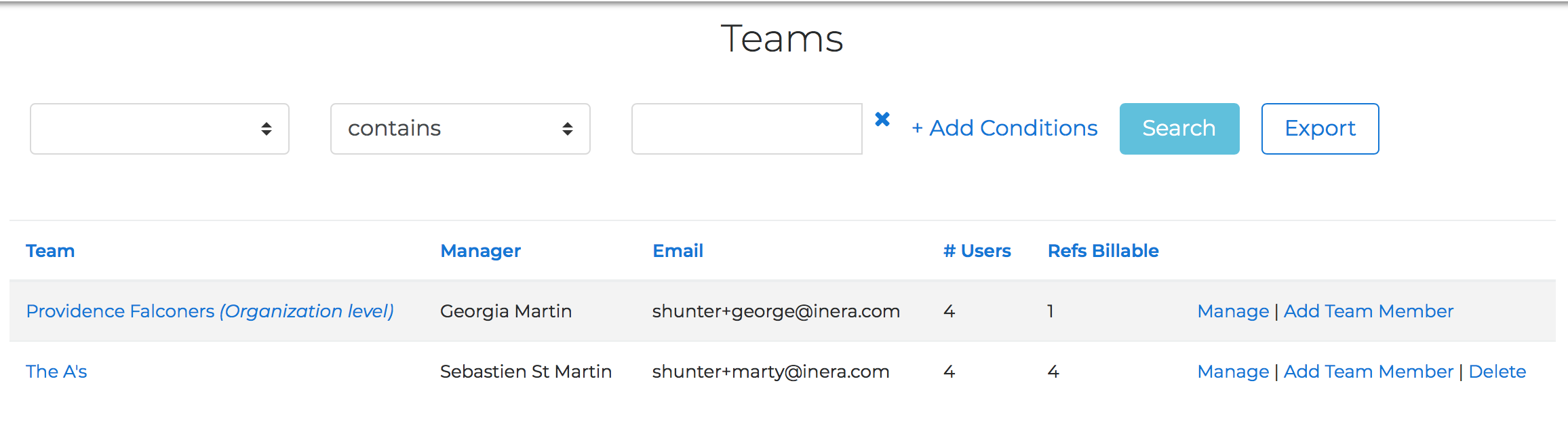
Find the team you want to add Team Members to, and in the far right-hand column, click Manage.
Note
If you have a large number of Teams, you can use the Search tools to find the one you need!
You should now see the Team Overview page:
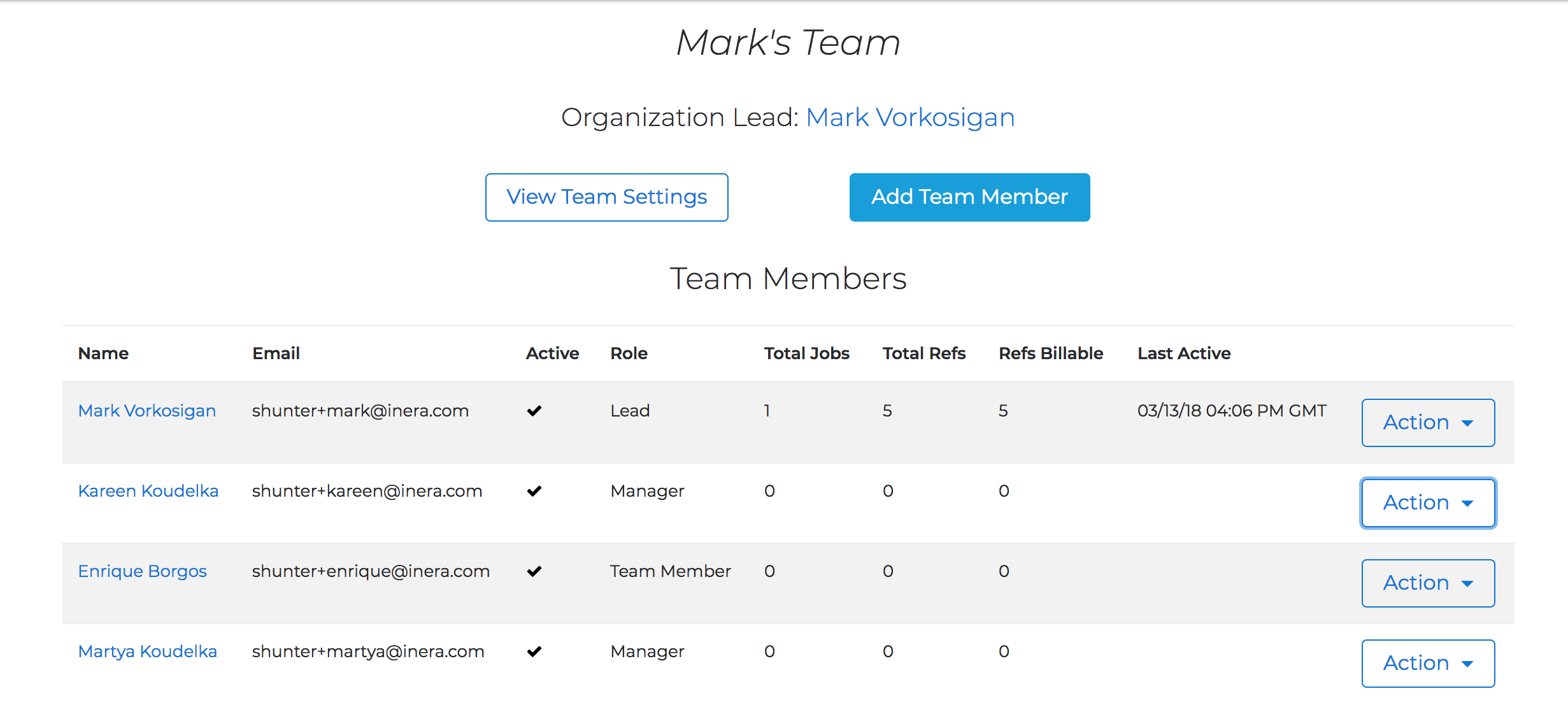
The third column from the left shows each Team Member's role. To designate a Team Member as a Manager, choose Promote from the Action drop-down in the far right-hand column.
The steps to remove a Team Member's status as a Manager, except that you will choose Demote from the Action drop-down.
Note
When you change a user's designation from Team Member to Manager, or from Manager to Team Member, email notifications will be sent to all members of this Team, as well as to you as the Organization Lead.