How can I designate a member of my Team as a Manager?
To add a new Team Member and designate them as a Manager, see here.
To designate an existing Team Member as a Manager, go to Account>My Team, where you'll see the Team Overview page:
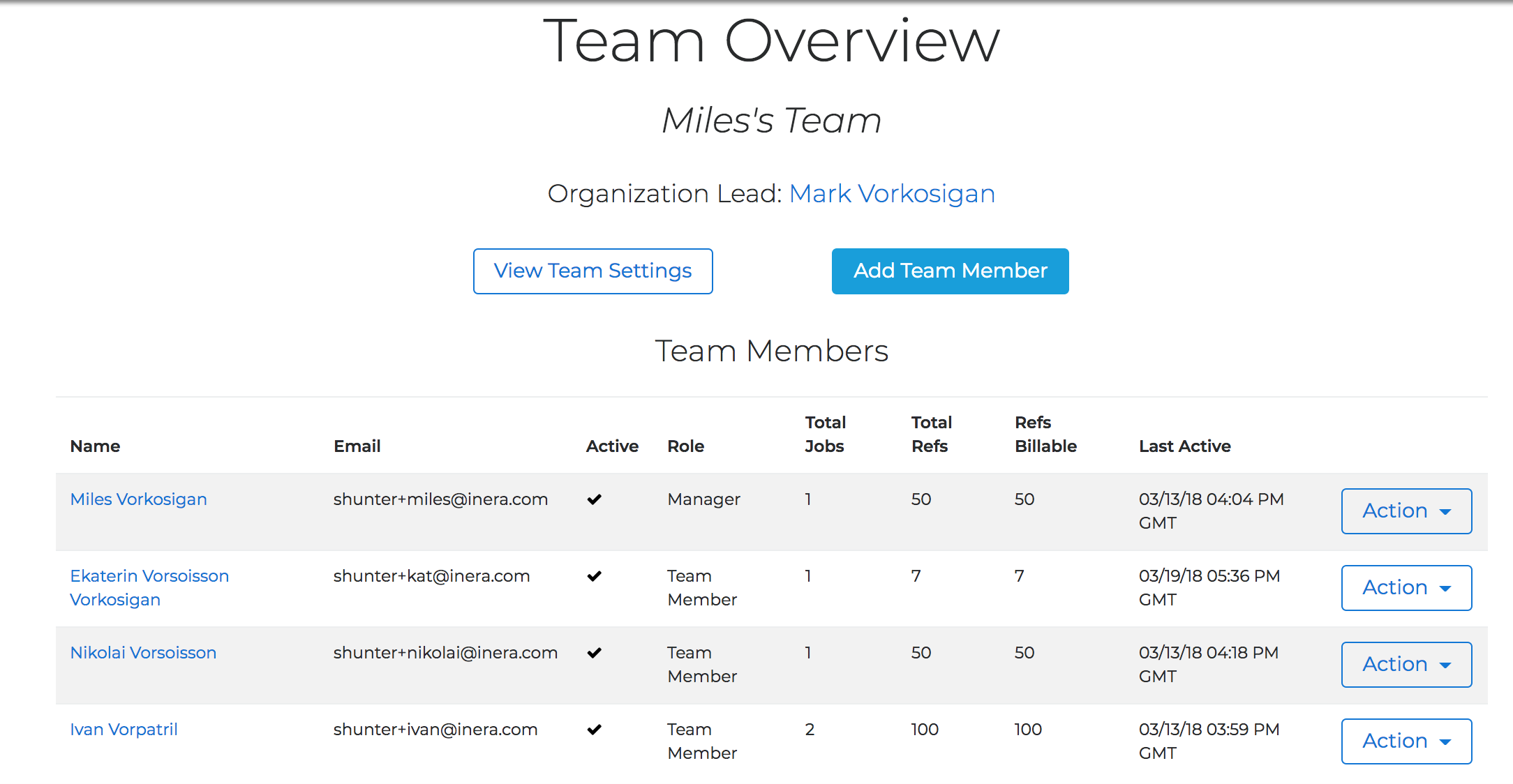
The third column from the left shows each Team Member's role. To designate any Team Member as a Manager, choose Promote from the Action drop-down list in the far right-hand column.
The steps to remove a Team Member's status as a Manager, except that you will choose De****mote from the Action drop-down list.
Note
When you designate a Team Member as a Manager, or remove their Manager status, email notifications will be sent to all members of this Team, including you as Manager, as well as to the Organization Lead.
Last updated: 3 May 2026, 02:47:41
Loading navigation...