Set up Cleanup in Typefi Orion Compass
Note
For Cloud environments, your Typefi team configures Cleanup on your behalf; Customer Administrators with the Manage Configuration privilege can also make changes. For Workgroup and Desktop environments, your Local Administrator performs these steps.
Cleanup prepares a Word document for conversion by removing unnecessary formatting and white space. Cleanup is powered by the Cleanup DOCX workflow action and runs as a server-side job.
To open Cleanup settings in Orion Compass:
- Sign in to Typefi Server with admin credentials:
- Cloud:
https://cloud.typefi.net - Workgroup or Desktop:
http://localhost:8080
- Cloud:
- Select the Switch app (9-dot menu) in the top-right corner, then select Orion Compass.
- Navigate to Configuration Options → Global Settings, then select Cleanup in the left menu.

Configure settings
The settings you configure here apply to all documents in your configuration unless an editor overrides them from the Cleanup dialog in Typefi Orion for Microsoft Word.
Breaks and white space
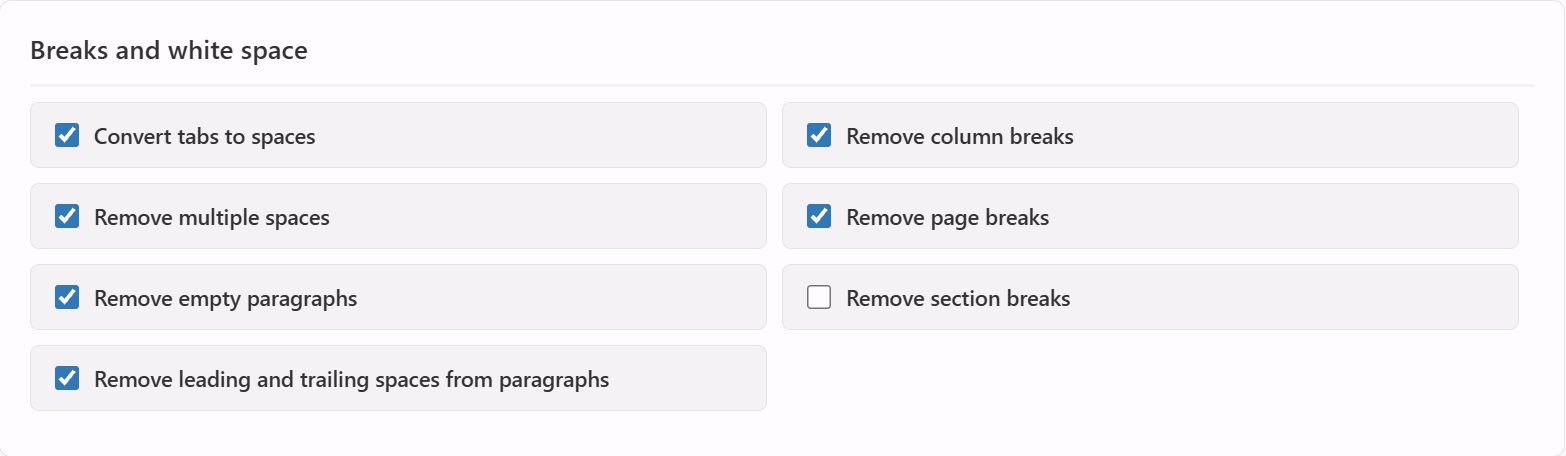
Remove extra spaces, empty paragraphs, and structural breaks that accumulate in author-submitted documents.
| Field | Description |
|---|---|
| Convert tabs to spaces | Converts each tab to a single space. Tab stops remain unchanged. Selected by default. |
| Remove column breaks | Removes breaks that force text into the next column. Selected by default. |
| Remove multiple spaces | Reduces two or more consecutive spaces to one. Selected by default. |
| Remove page breaks | Removes page breaks, including a paragraph's page break before. Selected by default. |
| Remove empty paragraphs | Removes paragraphs holding nothing, or only spaces, unless they carry hidden content such as a section break, a bookmark, or a field. Selected by default. |
| Remove section breaks | Removes section breaks inside the document. The final section is kept. Not selected by default. |
| Remove leading and trailing spaces from paragraphs | Removes spaces at the start and end of each paragraph. Selected by default. |
Typographic
Handle soft hyphens, line breaks, and All Caps or Small Caps text formatting.

| Field | Description |
|---|---|
| Remove optional hyphens | Removes optional hyphens but leaves nonbreaking hyphens. Selected by default. |
| Soft returns | Controls how each line break inside a paragraph is handled. Options: Leave as-is, Convert to spaces, Convert to hard returns. Default: Leave as-is. |
| Fix All Caps and Small Caps | Converts All Caps text to capital letters and removes the All Caps formatting. Capital letters lose Small Caps. Affects only caps applied directly or through a character style; caps set by the paragraph style are unchanged. Not selected by default. |
Character style to face markup conversion
Apply the formatting from each character style directly to the text and remove the style.

| Field | Description |
|---|---|
| Built-in styles | Converts Word's built-in character styles to their equivalent formatting. Selected by default. |
| User-defined styles | Converts character styles created by the author to their equivalent formatting. Selected by default. |
Comments, bookmarks, and hidden text
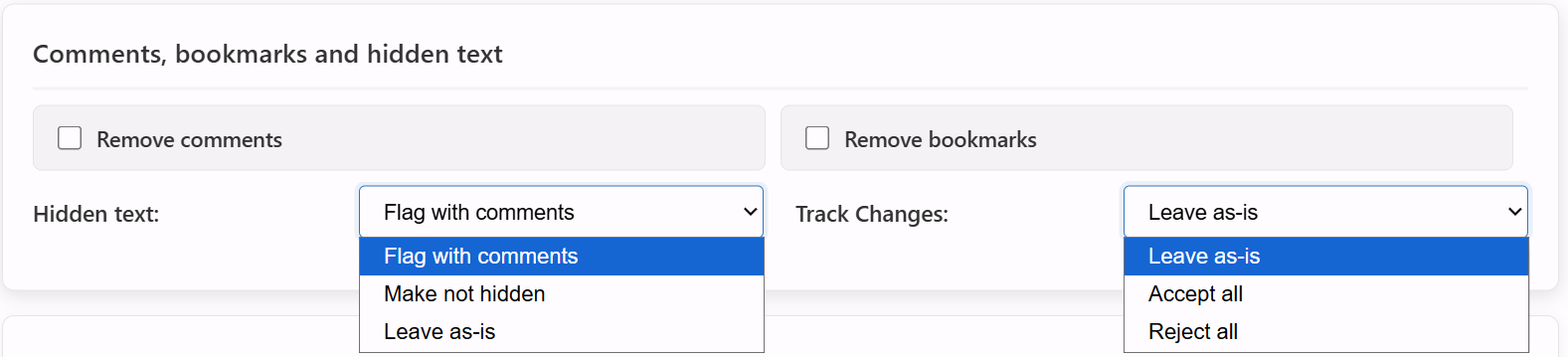
Handle reviewer comments, bookmarks, hidden text, and tracked changes.
| Field | Description |
|---|---|
| Remove comments | Removes every reviewer comment but keeps comments added by Cleanup. Not selected by default. |
| Remove bookmarks | Removes bookmarks that nothing in the document refers to. Not selected by default. |
| Hidden text | Controls how hidden text is handled. Options: Flag with comments, Make not hidden, Leave as-is. Default: Flag with comments. |
| Track Changes | Controls how tracked changes are handled. Options: Leave as-is, Accept all, Reject all. Default: Leave as-is. |
Graphics
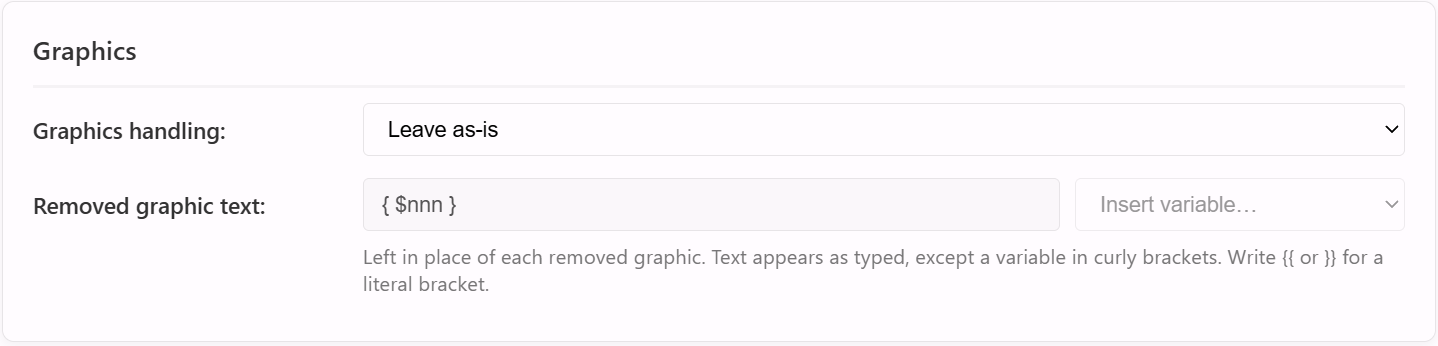
Control what happens to embedded images in the document.
| Field | Description |
|---|---|
| Graphics handling | Controls whether graphics stay in the document, are removed, or are extracted. Options: Leave as-is, Remove graphics, Extract graphics. When Extract graphics is selected, the Cleanup DOCX workflow action writes the image files out. A graphic that only links to its image file is left in place with a warning, because there is no embedded image to extract. Default: Leave as-is. |
| Removed graphic text | Specifies the replacement text left in place of each removed or extracted graphic. Active only when Graphics handling is set to Remove graphics or Extract graphics. Default: [INSERT FIGURE { $nnn }]. |
Removed graphic text
You can include a variable in Removed graphic text to insert a unique number or filename for each graphic:
| Variable | Output |
|---|---|
{ $n } | The graphic's number: 1, 2, 3 |
{ $nn } | The number with two digits: 01, 02, 03 |
{ $nnn } | The number with three digits: 001, 002, 003 |
{ $file } | The document's original filename, without its extension |
Graphics are numbered in sequence through the main text, then footnotes, then endnotes. A graphic that is left in place takes no number, so the sequence has no gaps.
To include a literal brace, enter {{ for { and }} for }. The eXtyles markers %Z, %D, and %N are not supported and will appear in the document exactly as typed.
WARNING
If Removed graphic text is blank or contains only white space when Remove graphics or Extract graphics is selected, Cleanup stops the job. The field must contain valid replacement text before you can save.
Tables
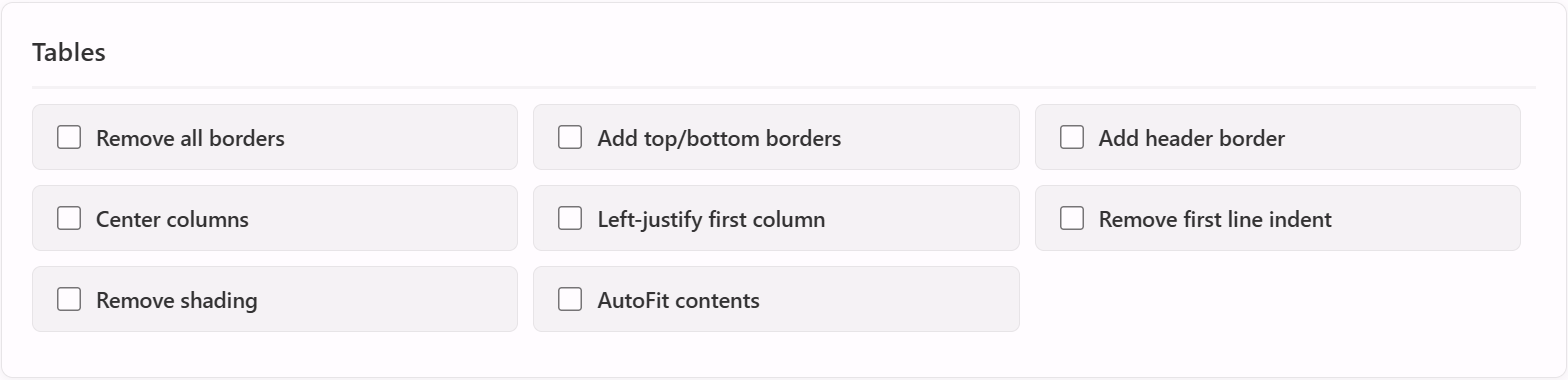
Normalise table formatting and alignment to a consistent baseline.
| Field | Description |
|---|---|
| Remove all borders | Removes all table and cell borders. Not selected by default. |
| Add top/bottom borders | Adds a rule above and below each table. Not selected by default. |
| Add header border | Adds a rule below the last header row. Not selected by default. |
| Center columns | Centres every cell paragraph. Not selected by default. |
| Left-justify first column | Left-aligns paragraphs in the first column. Not selected by default. |
| Remove first line indent | Removes first-line indents from table cells. Not selected by default. |
| Remove shading | Removes table and cell shading. Not selected by default. |
| AutoFit contents | Sizes each table to fit its contents. Not selected by default. |
Add a Cleanup workflow
Cleanup requires one workflow file, which must be created in Typefi Server before you can add it here.
Coming soon
Step-by-step guidance for creating a Cleanup Docx workflow in Typefi Server will be available soon.

To add a workflow:
- In the Cleanup section in Orion Compass, click Add Workflow.
- In the Choose Workflow dialog, navigate to your Cleanup workflow file (for example,
/Files/Orion workflows/Cleanup) and select the workflow. - Click Select to add the workflow.
- Click Save.
Only one Cleanup workflow can be added per configuration.
Next steps
For guidance on running Cleanup from the ribbon in Typefi Orion for Microsoft Word, see the Cleanup reference guide.