Set up Edifix in Typefi Orion Compass
Note
This article is for existing eXtyles customers migrating to Typefi Orion. For Cloud environments, your Typefi team configures Edifix on your behalf. For Workgroup and Desktop environments, your Local Administrator with the Manage Configuration privilege performs the steps in this article.
Edifix automatically corrects, links, and formats your citations and bibliographic references using Edifix with PubMed® and Crossref™. Edifix is powered by the Edifix plug-in and runs as a server-side job.
Gather requirements
Before Edifix configuration begins, you'll work with your Typefi team to confirm the following for each publication:
- Reference style requirements for each publication
- Sample content with representative references
- Paragraph style names that identify reference paragraphs in your documents
Prerequisites
Workgroup and Desktop: Before Edifix configuration begins, ensure your IT or local administrator has completed the following in Typefi Server:
- Installed a valid Typefi license (contains the installation ID required for Edifix).
- Configured a telemetry token. See Send telemetry data.
If the telemetry token is missing, you'll see an error when using Edifix in Typefi Orion for Microsoft Word. If you don't have a telemetry token, contact your Solutions Consultant.
Once the relevant styles are identified, your Typefi team configures the Edifix workflow in Typefi Server to:
- Apply your selected citation style to references
- Identify reference paragraphs using your specified paragraph styles
- Enable the appropriate reference processing sources (PubMed®, Crossref™, and others)
Coming soon
Step-by-step guidance for creating and managing your Edifix workflow in Typefi Server for Workgroup and Desktop environments will be available soon.
Set up your reference style
Your Typefi team will:
- Analyse your journal's reference style requirements
- Select the appropriate Edifix reference style for each publication
- Create a workflow in Typefi Server with the Edifix plug-in
- Add the Edifix workflow to Orion Compass
Using a custom eXtyles reference style
If your house reference style isn't one of Edifix's predefined editorial styles, you can provide your existing eXtyles reference-restructuring stylesheet (a RefStr .xsp file) instead. Your Typefi team uploads this file directly on the Edifix workflow's Styles tab, under eXtyles® editorial style.
INFO
The .xsp file must be a complete, self-contained stylesheet, with all <INCLUDE> directives already resolved before upload. This covers reference structure only; matching your house journal-name abbreviations is planned for a later release.
Manage Edifix workflows
Add an Edifix workflow
At this stage, your Typefi team or Local Administrator adds one or more Edifix workflows to Orion Compass. Workflow files are stored in an Edifix folder in Typefi Server Filestore.
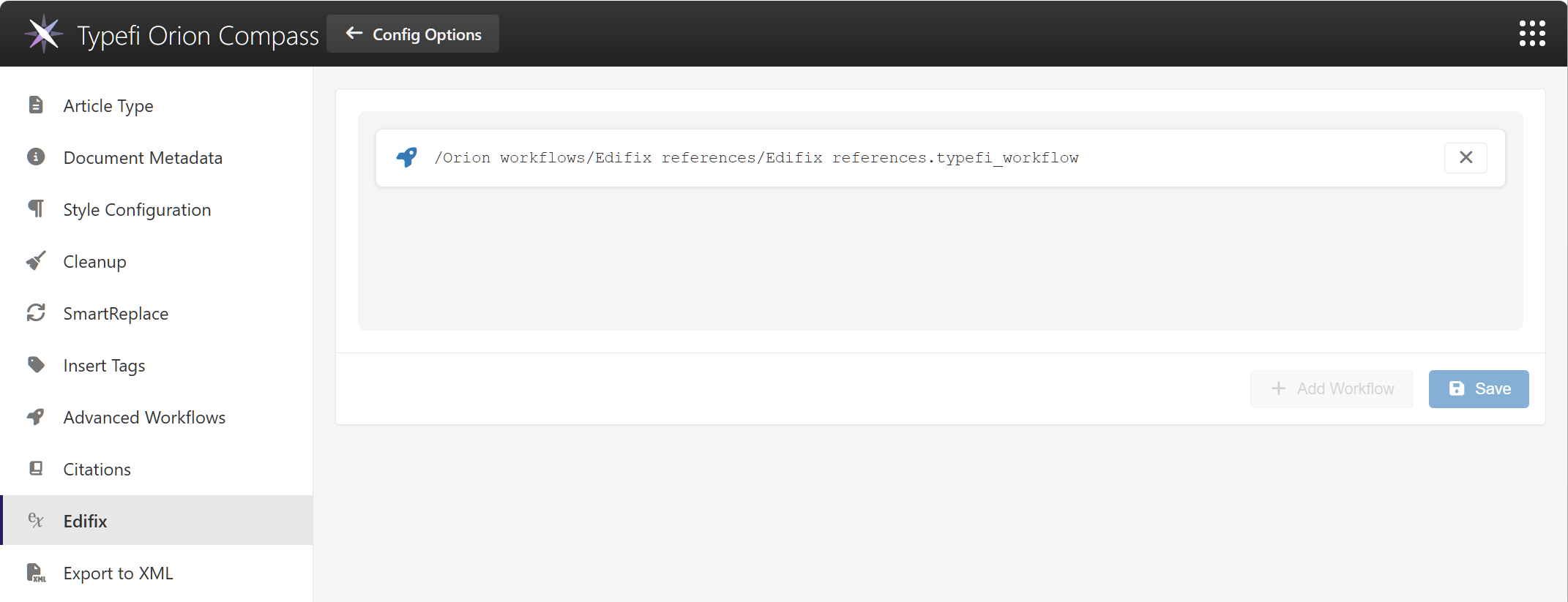
To add a workflow:
- Sign in to Typefi Server with admin credentials.
- Workgroup or Desktop:
http://localhost:8080
- Workgroup or Desktop:
- Select the Switch app (9-dot menu) in the top-right corner, then select Orion Compass.
- Navigate to the Global Settings menu (Orion Compass → Configuration Options → Global Settings) and select Edifix in the left menu.
- Click Add Workflow.
- In the Choose Workflow dialog, navigate to the Edifix references folder (for example,
/Files/Orion workflows/Edifix references). - Choose one or more workflows, then click Select.
- Click Save.
Reorder Edifix workflows
The position of workflows controls the order they appear in the Edifix menu in the Orion ribbon.
To reorder workflows:
- Click and drag the handle icon next to a workflow to move it to a new position in the list.
- Click Save.
Remove an Edifix workflow
Removing a workflow removes it from the Edifix menu in the Orion ribbon.
To remove a workflow, click the x next to it, then click Save.
Validation and training
After adding the Edifix workflow to Orion Compass, your Typefi team processes sample documents, reviews reference formatting and linking results with you, and confirms output meets your journal's requirements. Your Typefi team makes any adjustments needed before training your editorial team on using Edifix.
Next steps
After onboarding, your team can start using Edifix from the Typefi Orion for Microsoft Word ribbon. For guidance, see Edifix.