Typefi Orion ribbon not appearing in Microsoft Word
If you don't see the Orion ribbon in Microsoft Word, make sure you've installed Typefi Orion.

If Typefi Orion is already installed and you still don't see the Orion ribbon, follow the troubleshooting steps below.
Check whether you are running 64-bit edition of Microsoft Word
Typefi Orion is not compatible with 32-bit version of Microsoft Word.
Before proceeding, confirm that you are running the 64-bit edition of Microsoft Word. If you're not sure which version you have, see What version of Office am I using?.
If you are running the 32-bit edition of Microsoft Word, you will need to uninstall the 32-bit edition and reinstall Microsoft Office using the 64-bit edition. For installation instructions, see Download, install, or reinstall Microsoft 365 or Office 2024.
After installing the 64-bit version of Microsoft Word, check if the Orion ribbon appears in Word. If not, refer to the troubleshooting sections below to identify and resolve the issue.
Fix the run-time error
If you see the following error message when opening Microsoft Word (64-bit edition) after installing or updating Typefi Orion, follow the steps below to resolve it.
Note: If you don't see this error, skip to Check for disabled add-ins.
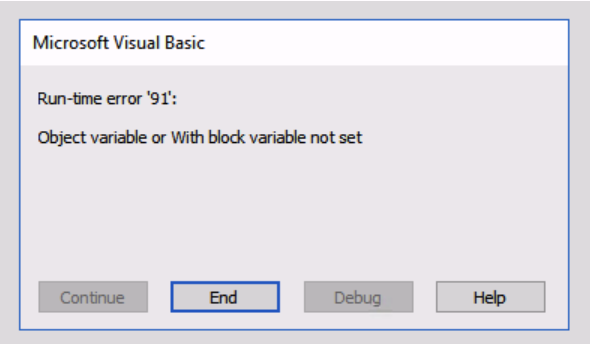
Run-time error '91': Object variable or With block variable not set.
This error may indicate that the Typefi COM add-in was not properly loaded.
To fix this:
- In Microsoft Word, go to File → Options → Add-ins.
- In the Manage pop-up window (at the bottom of the dialog), choose COM Add-ins and click Go.
- In the COM Add-ins dialog, select TypefiOrionRibbon.
- Click OK.
- Restart Word.
After restarting Word, check whether the Orion ribbon appears. If not, check for disabled add-ins in the next section.
Check for disabled add-ins
If you did not see the run-time error, or if the Orion ribbon is still not visible after fixing the run-time error, the add-in may be disabled.
To fix this:
- In Microsoft Word, go to File → Options → Add-ins.
- In the Manage pop-up window (at the bottom of the dialog), choose Disabled Items and click Go.
- If the TypefiOrionRibbon is in the Disabled Items dialog, click Enable.
- Restart Word.
After restarting Word, verify that the Orion ribbon appears.