Configure Insert Tags
INFO
Customising Insert Tags requires Typefi Orion Compass v1.1 or later and Typefi Orion for Microsoft Word v1.2 or later.
Insert Tags comes with 18 default tags ready to use without additional setup. Each tag maps content in your Word document to a pair of XML snippets that wrap around the tagged content. Export to XML inserts these when it builds the file.
You can customise the tag list in Typefi Orion Compass. For the steps to add, edit, delete, and reorder tags, see Set up Insert Tags.
Tag fields
Each tag is defined by four fields:
| Field | Description |
|---|---|
| Display Name | The label shown in the Insert Tags menu in the Orion ribbon |
| Tag Key | A unique identifier used to reference the tag internally |
| XML Snippet (opening) | The XML inserted before the tagged content during export |
| XML Snippet (closing) | The XML inserted after the tagged content during export |
Default tags
The following tags are included by default.
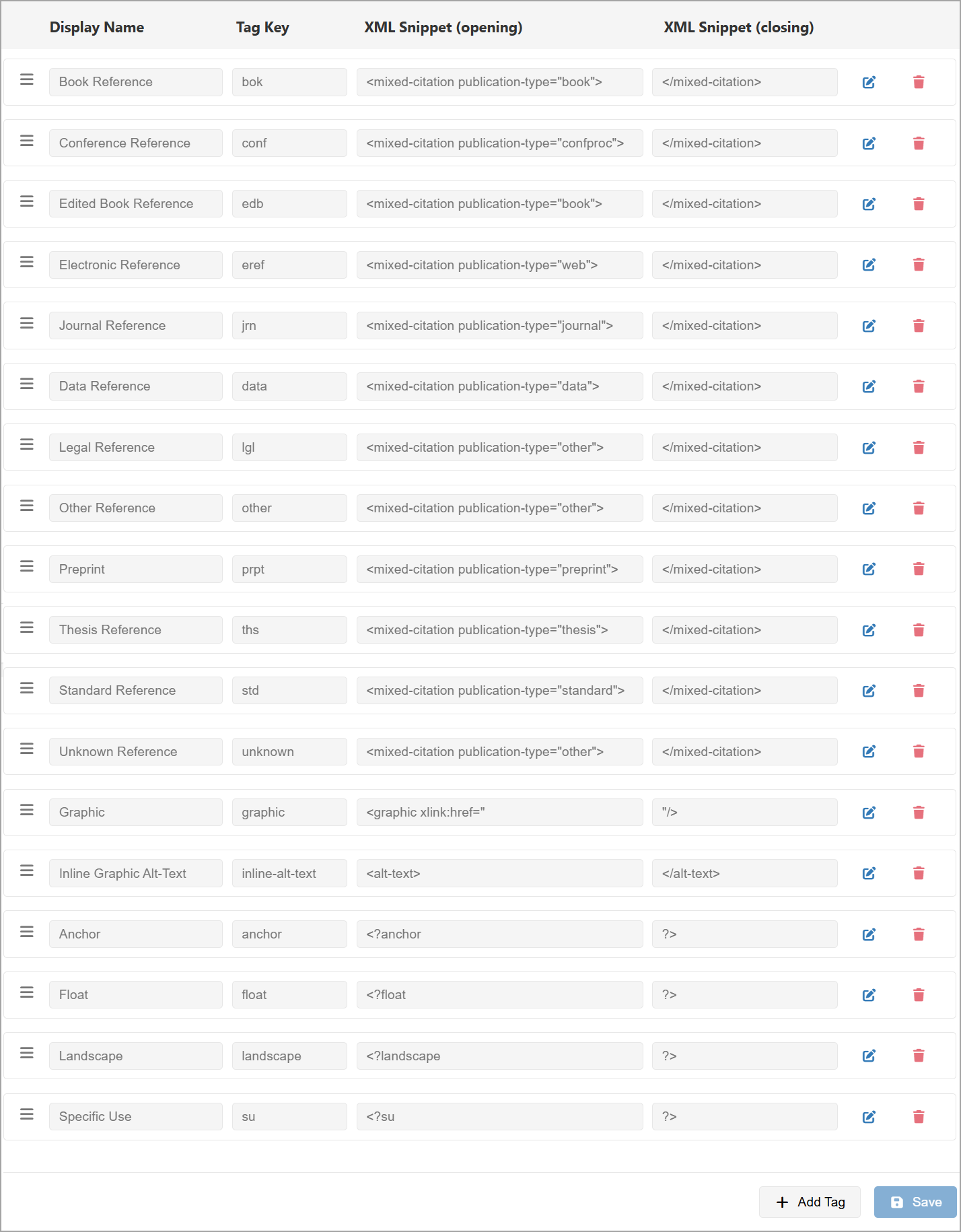
Reference tags
| Display Name | Tag Key | XML Snippet (opening) | XML Snippet (closing) |
|---|---|---|---|
| Book Reference | bok | <mixed-citation publication-type="book"> | </mixed-citation> |
| Conference Reference | conf | <mixed-citation publication-type="confproc"> | </mixed-citation> |
| Edited Book Reference | edb | <mixed-citation publication-type="book"> | </mixed-citation> |
| Electronic Reference | eref | <mixed-citation publication-type="web"> | </mixed-citation> |
| Journal Reference | jrn | <mixed-citation publication-type="journal"> | </mixed-citation> |
| Data Reference | data | <mixed-citation publication-type="data"> | </mixed-citation> |
| Legal Reference | lgl | <mixed-citation publication-type="legal"> | </mixed-citation> |
| Other Reference | other | <mixed-citation publication-type="other"> | </mixed-citation> |
| Preprint | prpt | <mixed-citation publication-type="preprint"> | </mixed-citation> |
| Thesis Reference | ths | <mixed-citation publication-type="thesis"> | </mixed-citation> |
| Standard Reference | std | <mixed-citation publication-type="standard"> | </mixed-citation> |
| Unknown Reference | unknown | <mixed-citation publication-type="other"> | </mixed-citation> |
Figure tags
| Display Name | Tag Key | XML Snippet (opening) | XML Snippet (closing) |
|---|---|---|---|
| Graphic | graphic | <graphic xlink:href=" | "/> |
| Inline Graphic Alt-Text | inline-alt-text | <alt-text> | </alt-text> |
Figure placement
| Display Name | Tag Key | XML Snippet (opening) | XML Snippet (closing) |
|---|---|---|---|
| Anchor | anchor | <?anchor | ?> |
| Float | float | <?float | ?> |
| Landscape | landscape | <?landscape | ?> |
Specific Use
| Display Name | Tag Key | XML Snippet (opening) | XML Snippet (closing) |
|---|---|---|---|
| Specific Use | su | <?su | ?> |
Numbering in custom tags
If a custom tag needs a unique ID for each instance, you can include an automatic number in the XML snippets. Export to XML replaces it with the next number in sequence each time the tag is used.
Add { $name } to the snippet, replacing name with any label you choose. Each label tracks its own sequence independently.
For example, the Quiz Reference tag uses automatic numbering to identify each quiz item:
| XML Snippet (opening) | XML Snippet (closing) |
|---|---|
<milestone-start id="q{ $milestone }"/> | <milestone-end rid="q{ $milestone-peek }"/> |
The opening snippet sets the number: q1 for the first quiz item, q2 for the second, and so on. The closing snippet uses { $milestone-peek } to reference the same number without moving to the next, so the start and end markers always match.
Format the number
Use format-integer() with the => operator to control how the number appears:
| Expression | Output |
|---|---|
{ $milestone => format-integer('001') } | 001, 002, 003… |
{ $milestone => format-integer('I') } | I, II, III… |
{ $milestone => format-integer('a') } | a, b, c… |
Restart numbering
Numbers do not reset automatically. To use a separate sequence for different sections or element types, use a different name for each, such as $ch1-quiz and $ch2-quiz.