Attach a publication to a Word document in Typefi Orion
Attaching a publication links your document to the specific settings configured and managed in Typefi Orion Compass. After you attach a publication, you can add metadata, apply paragraph styles, run Cleanup, and edit your document with Advanced Workflows before you export to XML. To attach a publication without opening the document in Word, add the Attach Publication workflow action to a Typefi Server workflow. For more information about the Orion plug-in, contact us.
Prerequisites
- Configure publication settings in Orion Compass.
- Connect Typefi Orion to a Typefi Server.
Attach a publication
- Open a Word document.
- In the Word ribbon, select the Orion tab.
- Click Publication in the Document group of the Orion ribbon. The Publication dialog opens.

- In the Select Publication dropdown, choose the specific publication you want to attach.
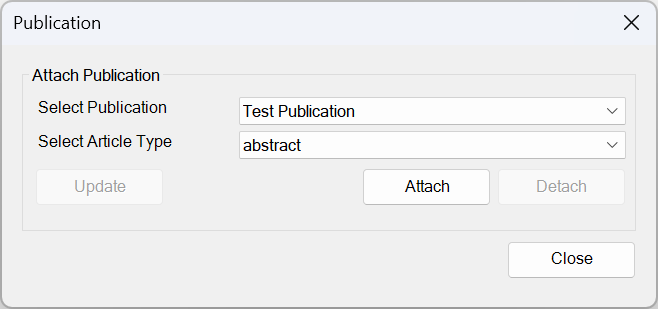
- In the Select Article Type dropdown, choose the type of article. (For BITS publications, choose a document type from the Select Document Type dropdown).
- Click Attach.
- Confirm the details, and then click Close.
Detach a publication
- Select the Publication in the Document group of the Orion ribbon.
- In the Publication dialog, click Detach.
- Click OK when prompted to detach the publication from the document.
- In the Publication dialog, click Close.
Update a publication
- Select the Publication in the Document group of the Orion ribbon.
- In the Publication dialog, click Update to sync your publication with its current settings in Orion Compass.
- If successful, a dialog will appear stating 'The attached publication has been updated successfully.'
- Click OK, then click Close.
Last updated: 4 Nov 2026, 06:26:40
Loading navigation...