Edifix
The Edifix tool consolidates bibliographic parsing, styling, and multi-database validation into a single automated workflow—removing the need for separate PubMed or Crossref tools. You can choose which databases Edifix checks using the Edifix References workflow action.
Edifix performs the following actions:
- Detects the reference type (for example, journal, book) and applies your organisation's house style
- Scans the bibliography for duplicate entries and flags them for editorial review (see Understanding duplicate-reference comments)
- Validates metadata entries against PubMed and Crossref to correct typos and insert missing DOIs or PMIDs
- Flags citations appearing in the Retraction Watch database with a warning comment
Character styles
Edifix applies the full set of character styles below to journal, book, book chapter, and standard references. Other reference types receive these styles as a minimum:
- Author names
- Publication year
- Reference number
- URLs
The following table lists the character styles applied. Each character style is coloured based on your organisation's configuration, so you can verify that Edifix parsed the metadata correctly.
| Reference element | Character style |
|---|---|
| Reference number | bib_number |
| Organisation or collaboration name | bib_organization |
| Author last name (surname) | bib_surname |
| Author first name (spelled out or initials) | bib_fname |
| Article title | bib_article |
| Journal name | bib_journal |
| Book title | bib_book |
| Conference proceedings source | bib_conference |
| Journal or publication volume | bib_volume |
| Journal issue number | bib_issue |
| Publication year | bib_year |
| Publication month | bib_month |
| Article or chapter first page | bib_fpage |
| Article or chapter last page | bib_lpage |
| The publication's DOI (in any form; URL, etc.) | bib_doi |
| External link (for example, arXiv) | bib_extlink |
| Any URL (excluding DOI) included in the reference | bib_url |
| Edition number | bib_editionno |
| Publisher location | bib_location |
| Publisher name | bib_publisher |
Reference types
Edifix wraps each reference with a tag that indicates the reference type at the start of each paragraph. These tags determine how Edifix styles and restructures the entry. To correct or manually apply a reference type, see Reference tags in the Insert Tags article.

Note
Only journal references are automatically restructured (re-punctuated). Other types receive character styling, but maintain their original formatting.
| Tag | Reference type |
|---|---|
jrn | Journal article |
bok, edb | Book or edited book or chapter |
std | Standard |
conf | Conference proceeding |
prpt | Preprint |
data | Data citation |
eref | Website or online article |
lgl | Legal case or statute |
ths | Thesis or dissertation |
other | Working paper, patent, map, or other document |
unknown | Unsupported or unidentified type |
If a reference keeps coming back unknown or as the wrong type, see Helping Edifix tag a difficult reference.
Before you run Edifix
Before using Edifix:
- Verify that your Typefi Orion administrator has added at least one Edifix workflow in Typefi Orion Compass.
- Run all preceding Orion processes, including SmartReplace.
Run Edifix

- In the Orion ribbon, navigate to the Edit group.
- Select the Edifix tool.

- If your administrator has added more than one Edifix workflow, Edifix opens a menu. Choose the workflow you want to run.
TIP
In the Edifix menu, the Typefi
icon marks the workflows you've already run on this document, including runs you cancelled or that failed.
- In the Edifix task pane, review the citation style, the number of references found, and the paragraph styles they were found in. The workflow's name appears at the top of the task pane.
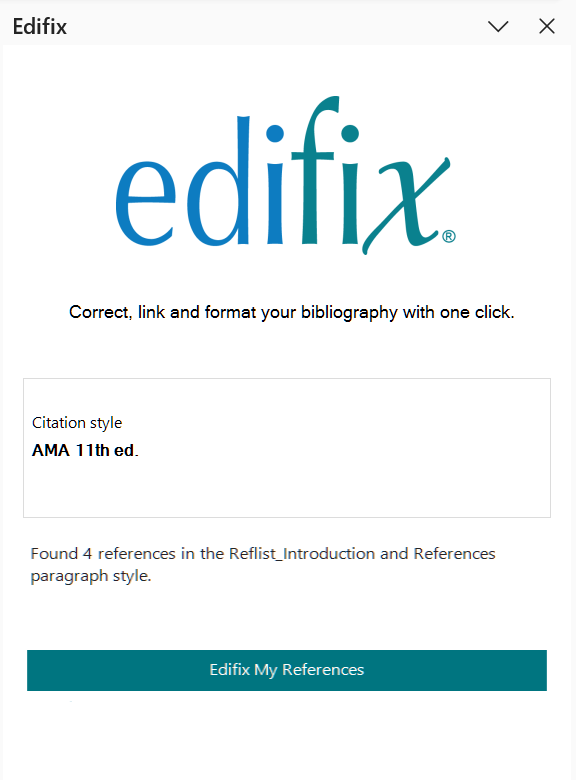
TIP
If the number of references found is higher than expected, check whether non-reference paragraphs are using a reference paragraph style.
- Click Edifix My References. Edifix processes your references on Typefi Server.
INFO
You can continue editing your document while the job runs. If you close the document, the task pane resumes tracking automatically when you reopen it. To stop the job, click Cancel.
- When the task pane shows Ready to Apply, click Apply.
- Click Dismiss and review the changes in your document.
Re-running a single reference
Edifix doesn't process references with an existing reference type tag. If every reference already has a tag, the task pane tells you that all references have been processed. To run one again, remove its tag first, then run Edifix again.
Reviewing results
Edifix automatically repairs citations when it finds a high-confidence match in an external database. Each comment describes what Edifix checked and what it corrected or flagged for your review.
Automated repairs include:
- Standardising journal abbreviations
- Filling in missing volume and issue numbers
- Repairing incomplete page ranges
Some references need a second look. See:
- What to do when a reference needs review for verify comments and references left unchanged
- Helping Edifix tag a difficult reference for fixing a reference stuck as
unknownor the wrong type - Understanding duplicate-reference comments for what "(see also N)" means
TIP
To review comments, switch to Print Layout view or open the Reviewing Pane (Review tab). Comments are not visible in Draft view.