How do I view individual Teams?
If your Edifix Organization has multiple Teams, you'll see them listed on the My Organization page, immediately below the data on your Organization:
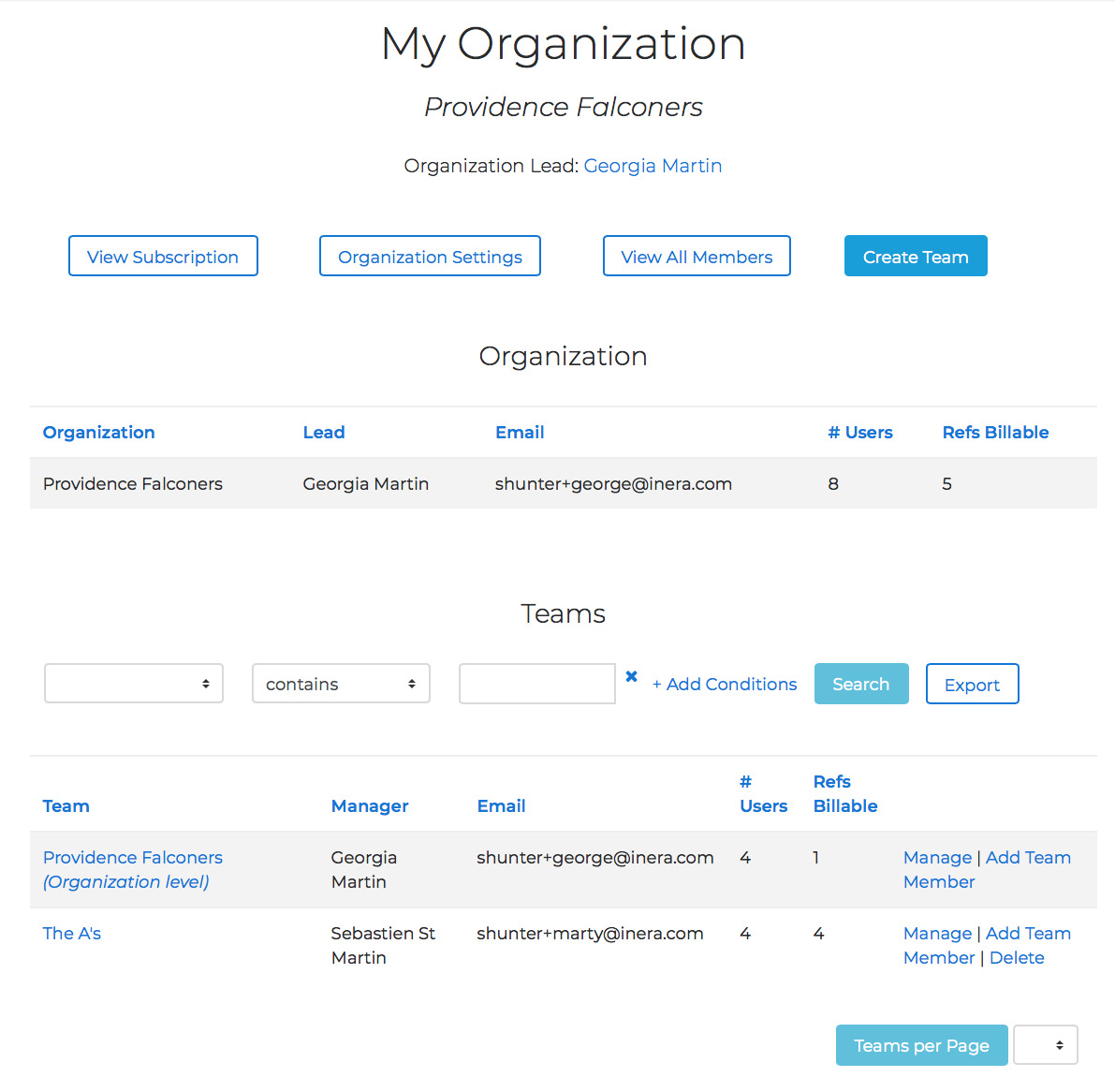
The first team listed will always be your Organization, and as Organization Lead, you will be listed as its Manager. If you have Team Members who are not part of a specific Team, this is where they'll be listed.
To access information about your Organization, see here.
To access information about a specific Team, click on the team name in the far left-hand column OR click on Manage in the far right-hand column to bring up the Team Overview page:
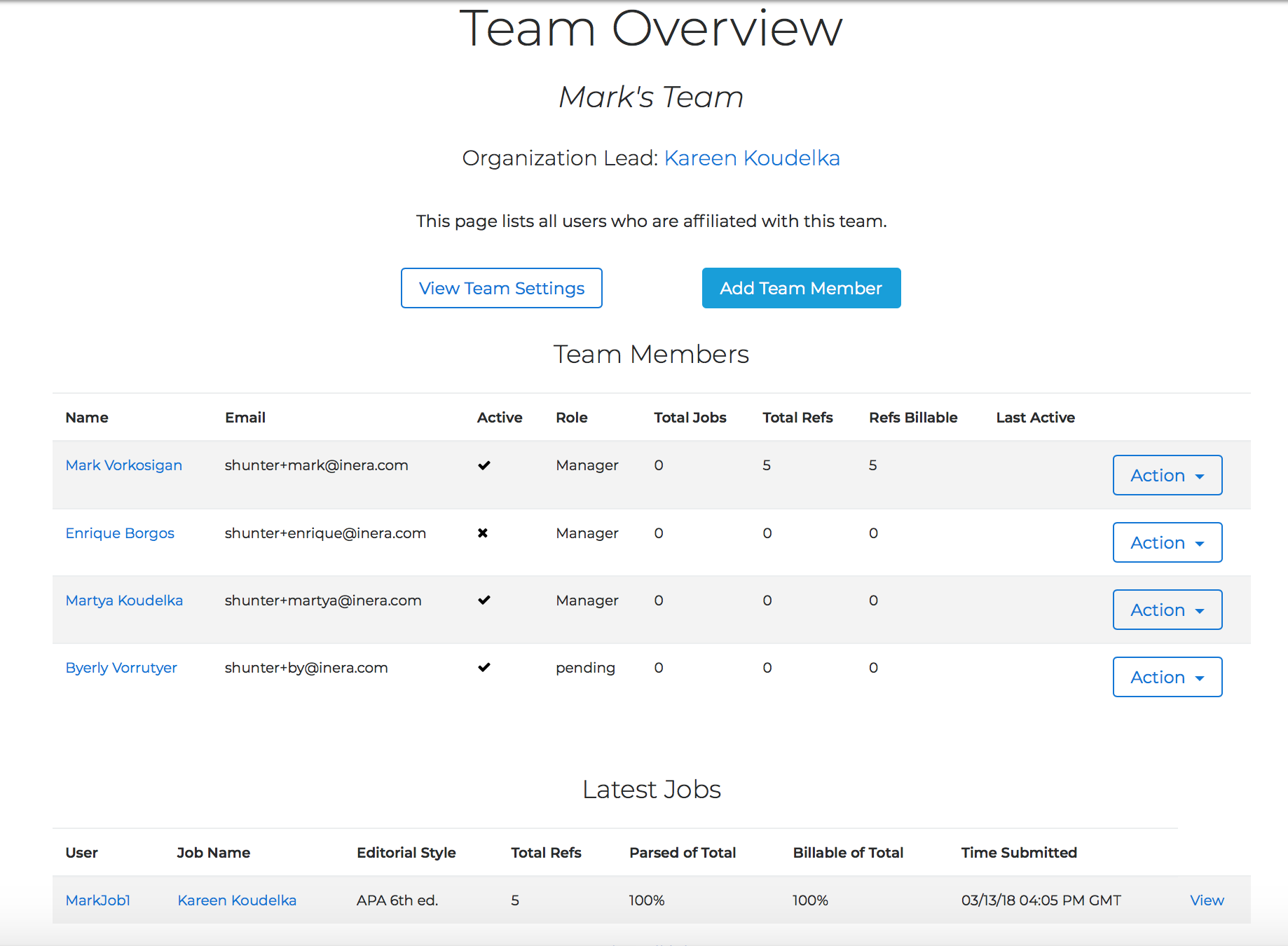
From this page, you can see
- who's on this Team (column 1)
- how to contact them (column 2)
- whose access has been disabled (column 3)
- each Team Member's role (Member or Manager) and whether any invitations are still pending (column 4)
- how many jobs, total references, and billable references each Team Member has processed (columns 5-7)
- when each Team Member last used Edifix (column 8)
You can also
- view or change the Team's default editorial settings via the View Team Settings button
- add a new Team Member to the Team via the Add Team Member button, and designate them as a Manager if appropriate
- change any Team Member's role via the Action drop-down OR by clicking on their name and checking/unchecking the Manager box on their Team Member Details page
- disable or enable access for any Team Member via the Action drop-down
- view any Team Member's profile by clicking on their name to access the Team Member Details page
- move any Team Member from this Team to another Team by clicking on their name and using the Team dropdown on the Team Member Details page
- delete a Team Member via the Action drop-down
Warning
When you delete a Team Member, you can only reinstate them by re-inviting them as a "new" member of your Organization! You may want to consider disabling their Edifix access instead.