Set up SmartReplace in Typefi Orion Compass
Note
This article is for existing eXtyles customers migrating to Typefi Orion. For Cloud environments, your Typefi team adds your SmartReplace workflows on your behalf. For Workgroup and Desktop environments, your Local Administrator performs the steps in this article.
SmartReplace automates common, time-consuming edits and complex text substitutions directly in your working Word document.
Gather requirements
Before SmartReplace configuration begins, you'll work with your Typefi team to identify which rules to implement.
You'll review the following together:
- Cleanup rules previously handled in eXtyles
- Editorial conventions applied via search-and-replace
- Shared or publication-specific replacement logic
Create dictionaries and workflows
Based on your requirements, your Typefi team configures SmartReplace dictionaries that control how Orion normalises text during processing. Dictionaries can be general (apply across all your documents), publisher-specific (apply to all documents within a publisher group), or publication-specific (apply to individual journals or publications). After the dictionaries are set up, your Typefi team creates the SmartReplace workflows.
Coming soon
Step-by-step guidance for Workgroup and Desktop configurations will be available soon.
Add SmartReplace workflows to Orion Compass
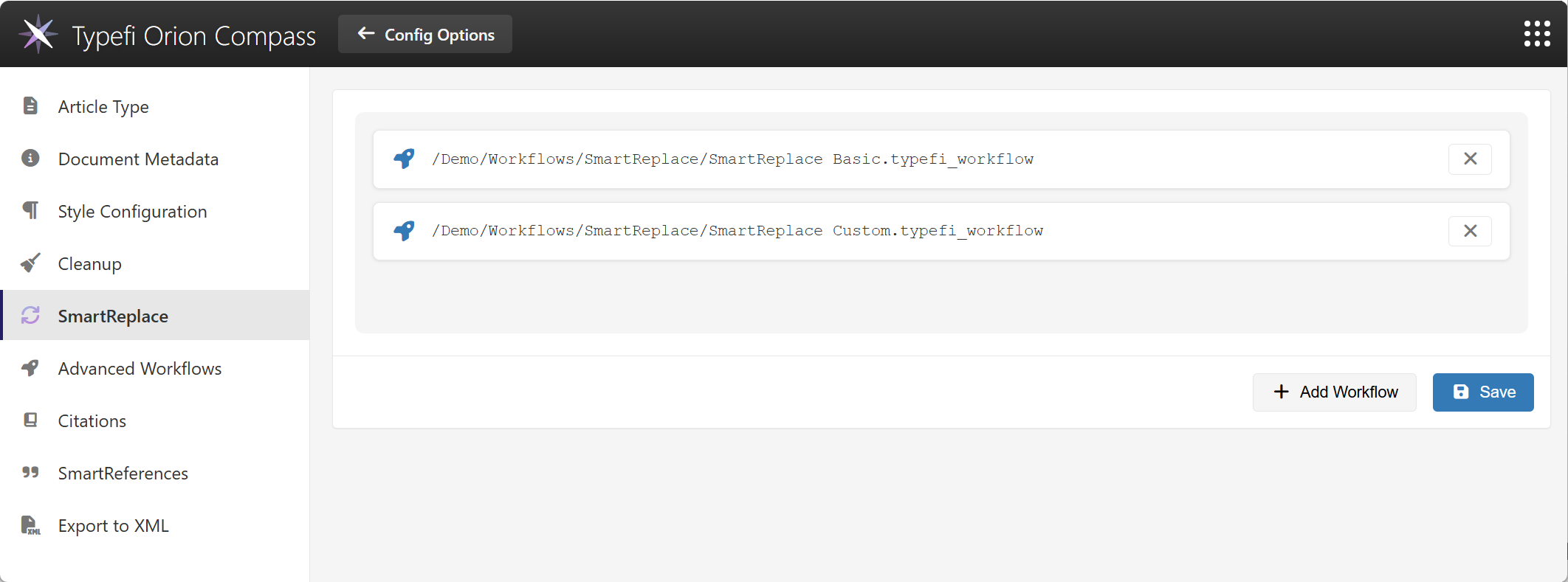
At this stage, your Typefi or Local Administrator adds the workflows to Orion Compass. The workflow files are stored in a SmartReplace folder in Typefi Filestore. If you are migrating from Inera® eXtyles, your workflows are based on your existing Auto-Redact dictionaries, and the number of workflows depends on how your SmartReplace rules are organised.
- Sign in to Typefi Server with admin credentials:
- Workgroup or Desktop:
http:localhost:8080
- Workgroup or Desktop:
- Select the Switch App (9-dot menu) in the top-right corner, then select Orion Compass.
- Navigate to the Global Settings menu in Orion Compass, (Orion Compass → Configuration Options → Global Settings), and select SmartReplace in the left menu.
- Click Add Workflow.
- In the Choose Workflow dialog, navigate to the SmartReplace folder (for example,
/Files/Orion workflows/SmartReplace) and select a workflow. - Click Select to add the desired workflow.
- Click Save.
Any added workflows appear in the SmartReplace dropdown in the Typefi Orion for Word ribbon.
Validation and training
After workflows are added to Orion Compass, your Typefi team confirms critical replacement rules and any that must remain unchanged, tests workflows against sample content, ensures all publication-specific editorial standards are met, and incorporates your feedback. Your editorial team is then trained to run these workflows.
Next steps
Once setup is complete, your organisation can start using SmartReplace from the Typefi Orion for Word ribbon. For guidance on using SmartReplace, see the SmartReplace reference guide.