SmartReplace
Typefi Orion's SmartReplace is designed to automate common, time-consuming edits and complex text substitutions directly in your working Word document. This tool helps bring your content into compliance with your organisation's publication styles and standards—allowing you to focus on more substantive copyediting tasks.
How SmartReplace rules are applied
NOTE
For users transitioning from Inera's eXtyles AutoRedact, the SmartReplace plug-in automatically converts your existing AutoRedact rules into active SmartReplace rules.
SmartReplace substitutions are based on user-defined rules that are assembled into three different categories of SmartReplace dictionaries.
- General: Applies to all documents processed through Typefi Orion.
- Publisher-specific: Applies to all documents of a single publisher.
- Publication-specific: Applies to all documents of a single publication within a publisher group, (for example, a single journal within a publisher family).
Typefi Orion automatically loads the correct dictionaries based on the publication attached to the Word document.
Apply SmartReplace rules
To apply SmartReplace rules to your document, follow these steps:
- Run all processes in the Document group of the Orion ribbon before running SmartReplace.
- Select a workflow from the SmartReplace dropdown in the Edit group of the Orion ribbon. A dialog will appear to notify you that the process is running.

Note
To add or change SmartReplace rules, please contact your Solutions Consultant.
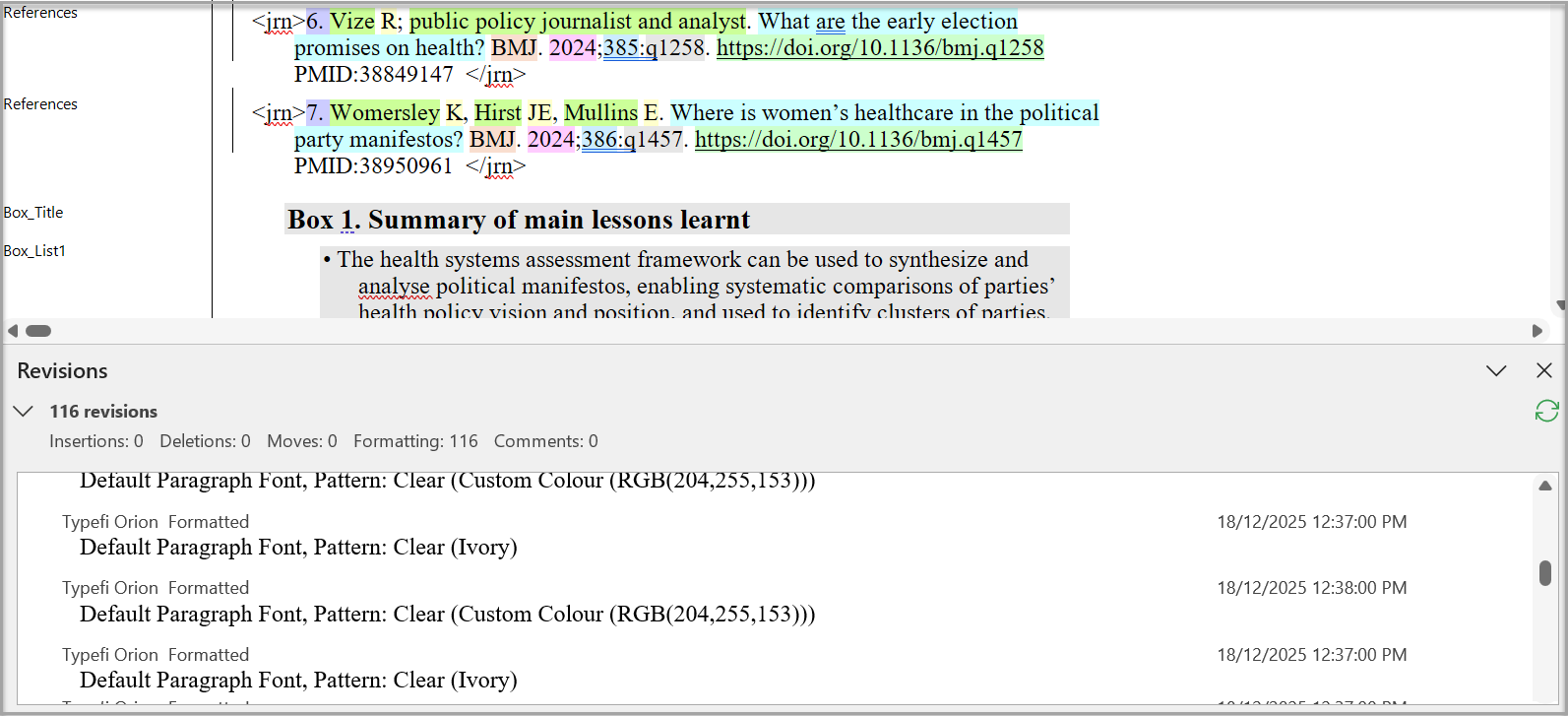
Reviewing SmartReplace revisions with Word change tracking
After running SmartReplace, you can review the revisions made by Typefi Orion using Microsoft Word's Track Changes Options.
To review SmartReplace revisions:
- Navigate to the Review tab in the Microsoft Word ribbon.
- In the Markup group, select the Reviewing Pane dropdown.
Choose either:- Vertical: to pin the review section the left of your document, or
- Horizontal: to pin the revisions to the bottom of your document.
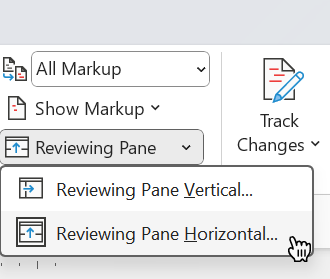
- Now, you can review each rule applied by SmartReplace as you work in Typefi Orion.