Attach a publication to a Word document in Typefi Orion
Attaching a publication links your document to the specific settings configured and managed in Typefi Orion Compass. After attaching your publication, then you can add metadata, paragraph styles, run cleanup and edit your document with advanced workflows before exporting XML.
Prerequisites
- Configure publication settings in Orion Compass.
- Connect Typefi Orion for Word to a Typefi Server.
Attach a publication
- Open a Word document.
- In the Word ribbon, select the Orion tab.
- Click Publication in the Document group of the Orion ribbon.

- The Publication dialog will open.
- In the Select Publication dropdown, choose the specific publication you want to attach.
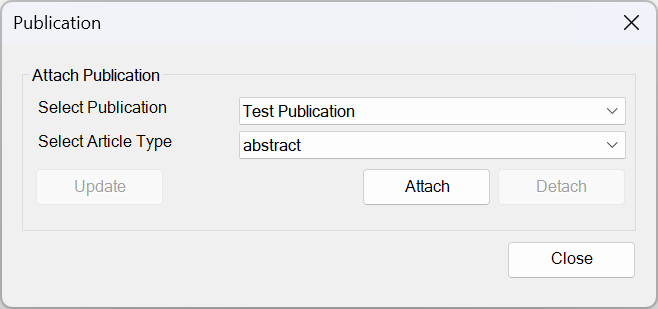
- In the Select Article Type dropdown, choose the type of article. (For BITS publications, choose a document type from the Select Document Type dropdown).
- Click Attach.
- Confirm the details, and then click Close.
Detach a publication
- Select the Publication in the Document group of the Orion ribbon.
- In the Publication dialog, click Detach.
- Click OK when prompted to detach the publication from the document.
- In the Publication dialog, click Close.
Update a publication
- Select the Publication in the Document group of the Orion ribbon.
- In the Publication dialog, click Update. This will sync your publication with the default settings in Typefi Orion Compass.
- If successful, a dialog will appear stating 'The attached publication has been updated successfully.'
- Click OK, then click Close.
Last updated: 5 Jun 2026, 22:41:35
Loading navigation...