Attach Publication
The Attach Publication workflow action attaches a Typefi Orion publication and document type to a Word document (.docx), so you don't need to attach a publication in Typefi Orion for Microsoft Word.
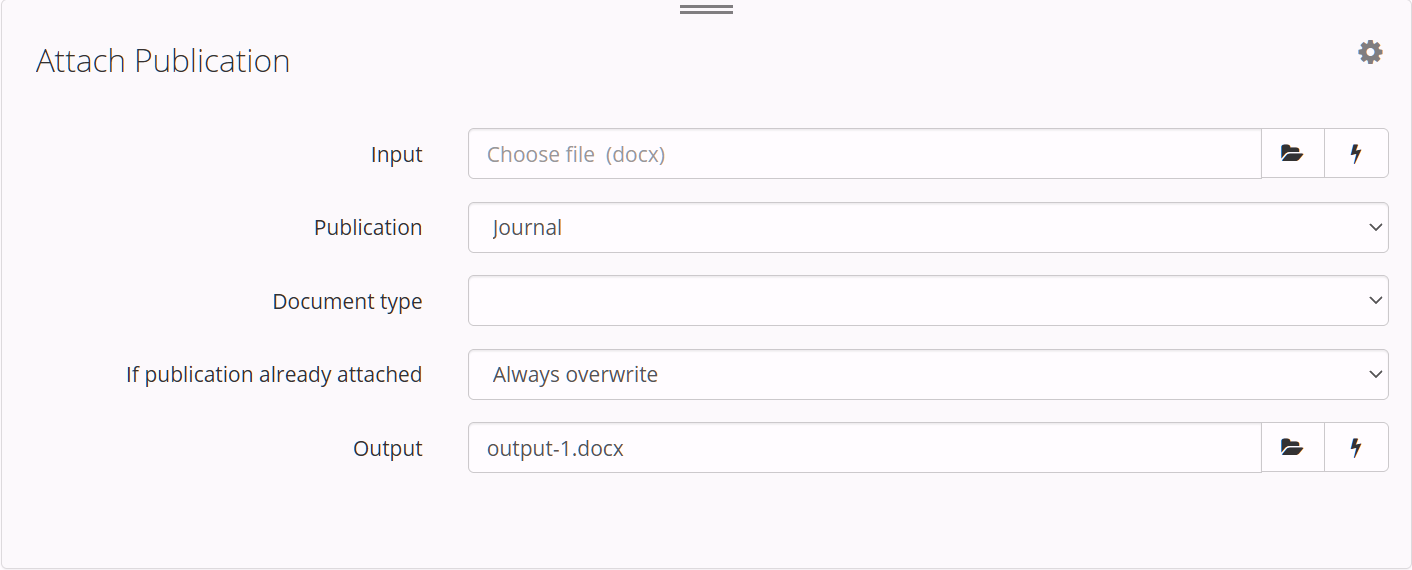
| Field | Description |
|---|---|
| Input | The input Word document (.docx). Click the Choose File icon  |
| Publication | Specify the publication to attach. The list shows the publications set up in Typefi Orion Compass. |
| Document type | Specify the document type to attach. The list shows the selected publication's document types, or its article types for JATS publications. Leave Document type blank, the default, to keep the type the document already has. |
| If publication already attached | Specify what happens when the document already has a publication attached. The default is Always overwrite. See If a publication is already attached. |
| Output | The output Word document (.docx). Click the Choose File icon |
TIP
You can use workflow variables to specify file paths. To insert a workflow variable, click the lightning bolt icon and choose a variable from the pop-up menu.
If a publication is already attached
If someone attached a publication in Orion for Word, you can use If publication already attached to replace it or keep it:
- Always overwrite replaces it with the publication in Publication, using its current settings from Orion Compass.
- Never (pass through) keeps it, even if its settings in Orion Compass have changed. Attach Publication ignores Publication and Document type.
If the document doesn't have a publication attached, Attach Publication attaches the one in Publication, whichever option you select.
Filename
A file's name often changes as it moves through a workflow, so Attach Publication records the document's filename. Cleanup uses the recorded filename for the { $file } variable in Removed graphic text. If you use { $file } and the document has no recorded filename, the Cleanup job fails.
Attach Publication records the filename in one of two ways:
- If you select Always overwrite, or the document has no publication attached, Attach Publication records the Input filename and replaces any filename recorded earlier.
- If you select Never (pass through) and the document already has a publication attached, Attach Publication keeps any filename recorded earlier. It records the Input filename only if the document doesn't have one.
Warnings and errors
Attach Publication shows a warning under Publication or Document type when you open the workflow, and writes errors and warnings to the job log.
Why does Publication or Document type show "Invalid selection"?
You'll see "Invalid selection" when a workflow uses a publication or document type that's no longer available (for example, if someone renamed the publication in Orion Compass, or your configuration no longer includes the document type).
Until you update the workflow, jobs that attach a publication fail, and the job log shows "Can't find the publication…" or "Can't find the document type…". To update it, select a publication or document type from the list, and then save the workflow.
Why is the Document type list empty?
If the Document type list has nothing to choose from, either no document types are set up for that publication, or Orion couldn't read them. If none are set up, you can still run the workflow, and the document keeps the type it already has. If Orion couldn't read them, jobs that attach a publication fail.
To add document types, ask an administrator to import your configuration. If your configuration is imported and the list is still empty, reach out to our support team. We're happy to help.
Why do Publication and Document type show "Couldn't load options"?
You'll see "Couldn't load options" when Orion can't read the publications in your Orion configuration. To fix it, check that:
- Files in Typefi Server has an Orion configuration folder at the top level.
- Your publications are set up in Orion Compass.
If either is missing, ask an administrator to add it. If both are in place and you still see this warning, reach out to our support team. We're happy to help.
Why can't Attach Publication open my document?
If Attach Publication can't open your document, the job fails. The job log shows "Can't attach publication", then your document's filename and the reason:
| If the message says it's… | What to do |
|---|---|
| "password-protected" | Remove the password in Word, save the document, and then rerun the job. |
| "an older Word document, not a .docx" | Open the document in Word, save it as a .docx file, and then rerun the job. |
| "not a .docx package" | Check that Input is a Word document (.docx). If it is, the copy in Typefi Server may be incomplete. Upload it again, and then rerun the job. |
| "damaged or incomplete" | Open the document in Word, save it, and then rerun the job. |
If you've done that and still see this error, reach out to our support team. We're happy to help.
Why does the job say there's no file, or that a path isn't a file?
If Input or Output doesn't point to a file, the job fails, and the job log tells you which one:
- If it says "there is no file at" a path, check that Input points to your Word document.
- If it says "is not a path to a file", check that Input and Output each include a filename.
- If it says "the Output path names the folder", add a filename to Output, for example, output-1.docx.
If you've done that and still see this error, reach out to our support team. We're happy to help.
Why does the job say it can't read the Orion configuration?
If the job log shows "Can't read the Orion configuration", Orion couldn't find your publications or couldn't use one of their settings. The rest of the message tells you which:
- If it says "no publication.json", check that Files in Typefi Server has an Orion configuration folder at the top level, and that your publications are set up in Orion Compass.
- If it mentions the "journalId", make sure the publication's Journal ID (Publication ID for BITS) in Orion Compass is a single name, without a slash (
/) or backslash (\).
If everything's in place and you still see this error, reach out to our support team. We're happy to help.
Why does the job say Orion couldn't unpack or write a file?
If the job log shows "Can't attach publication — Orion couldn't unpack" or "Orion couldn't write", Orion couldn't save a file to the job folder or to Output. If you use Typefi Workgroup or Typefi Desktop, check that:
- The server has enough disk space.
- The server can write to the job folder and the Output folder.
- The Output file isn't open in another program.
If you use Typefi Cloud, or all three are in place and you still see this error, reach out to our support team. We're happy to help.
Why does the job log say Orion repaired my document?
If your document wasn't saved in Word (for example, if it was converted from LaTeX), it might be missing the document settings that Word adds to every document it saves. Attach Publication adds them so it can attach the publication, and the job log shows "Orion repaired", then your document's filename.
The job still runs. To stop the warning, open the document in Word, save it, and then use that copy next time.