Configure and manage settings in Typefi Orion Compass
Typefi Orion Compass is a self-service admin portal for configuring and managing settings for Typefi Orion. For Workgroup and Desktop deployments, a Local Administrator completes the setup and manages configuration directly in Orion Compass. For Cloud deployments, your Typefi team manages these settings on your behalf.
Getting started with Typefi Orion Compass
Everyone in your organisation can access Orion Compass—what you can see and do there depends on your deployment and role:
- Workgroup: The Local Administrator has full administrative control and can grant elevated access to other users.
- Desktop: The Local Administrator has full administrative control.
- Cloud: Customer Administrators with the Manage Configuration privilege have full access to Orion Compass; all other users have read-only access.
For more information, see Administrators for cloud and on-premises environments.
To get started:
- Sign in to Typefi Server with admin credentials:
- Cloud:
https://orion.typefi.net - Workgroup or Desktop:
http:localhost:8080
- Cloud:
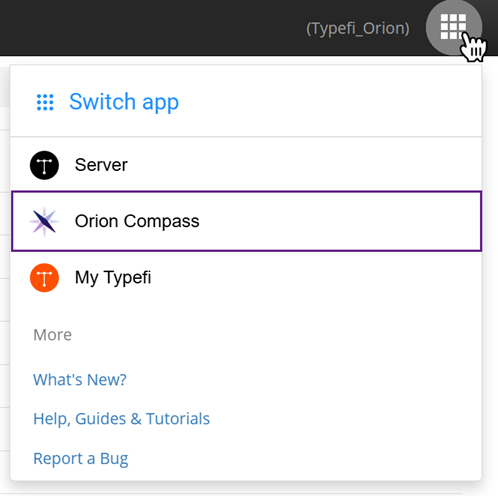
- Select the Switch app (9-dot menu) in the top-right corner, then select Orion Compass.
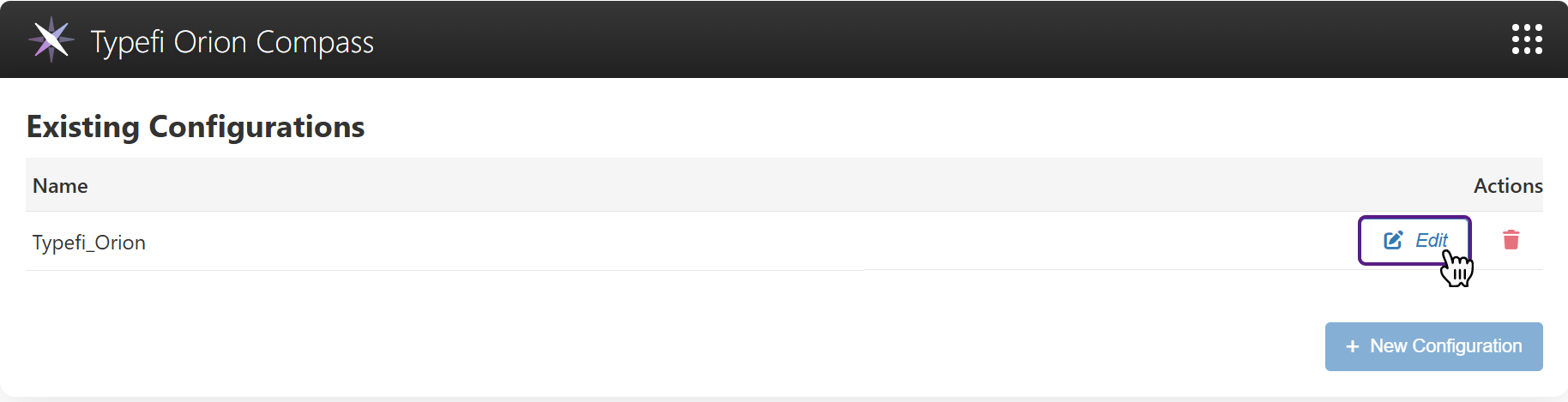
Existing Configurations
You can manage your organisation's configuration by selecting Edit.
Note
If you are not signed in as an administrator, select View instead.
To add a new configuration, see Import your configuration in Typefi Orion Compass.
Configuration options
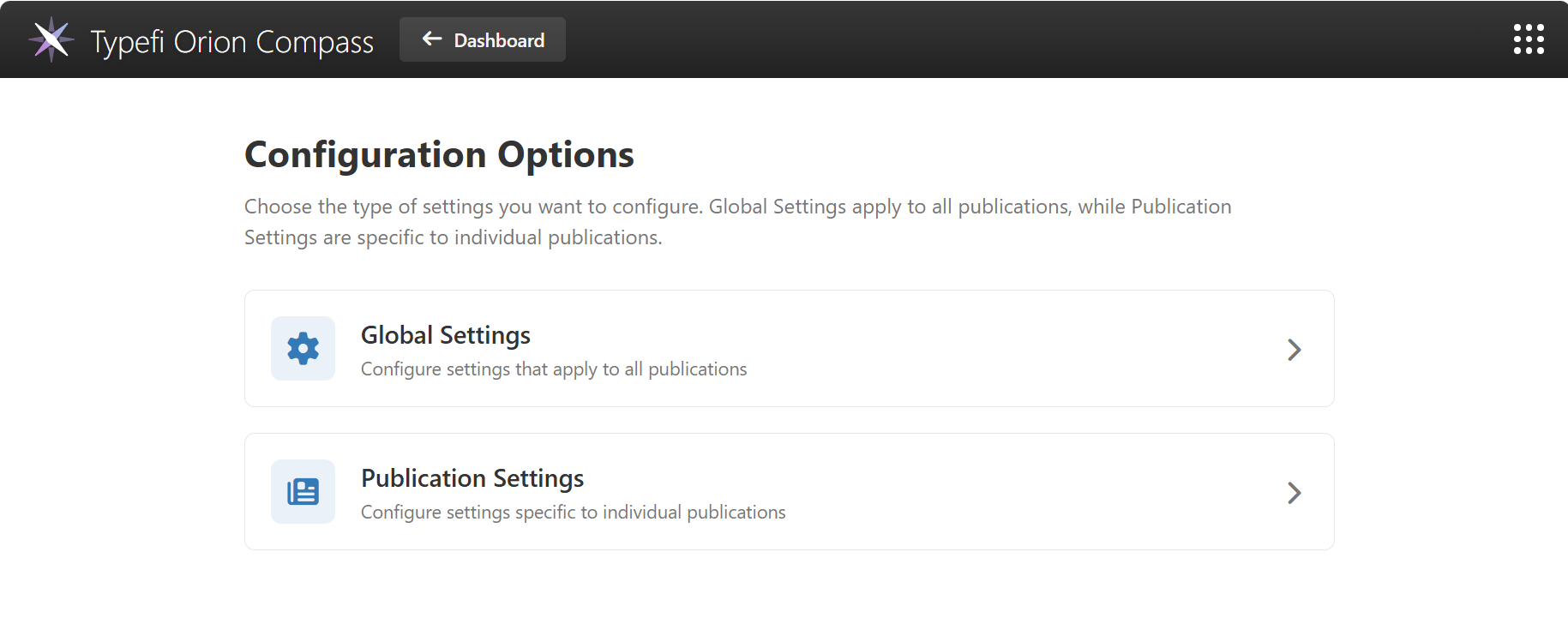
Selecting Edit opens the Configuration Options page, where you choose the type of settings you want to configure.
- Global Settings: Configure settings that apply to all publications.
- Publication Settings: Configures settings specific to individual publications.
Global settings
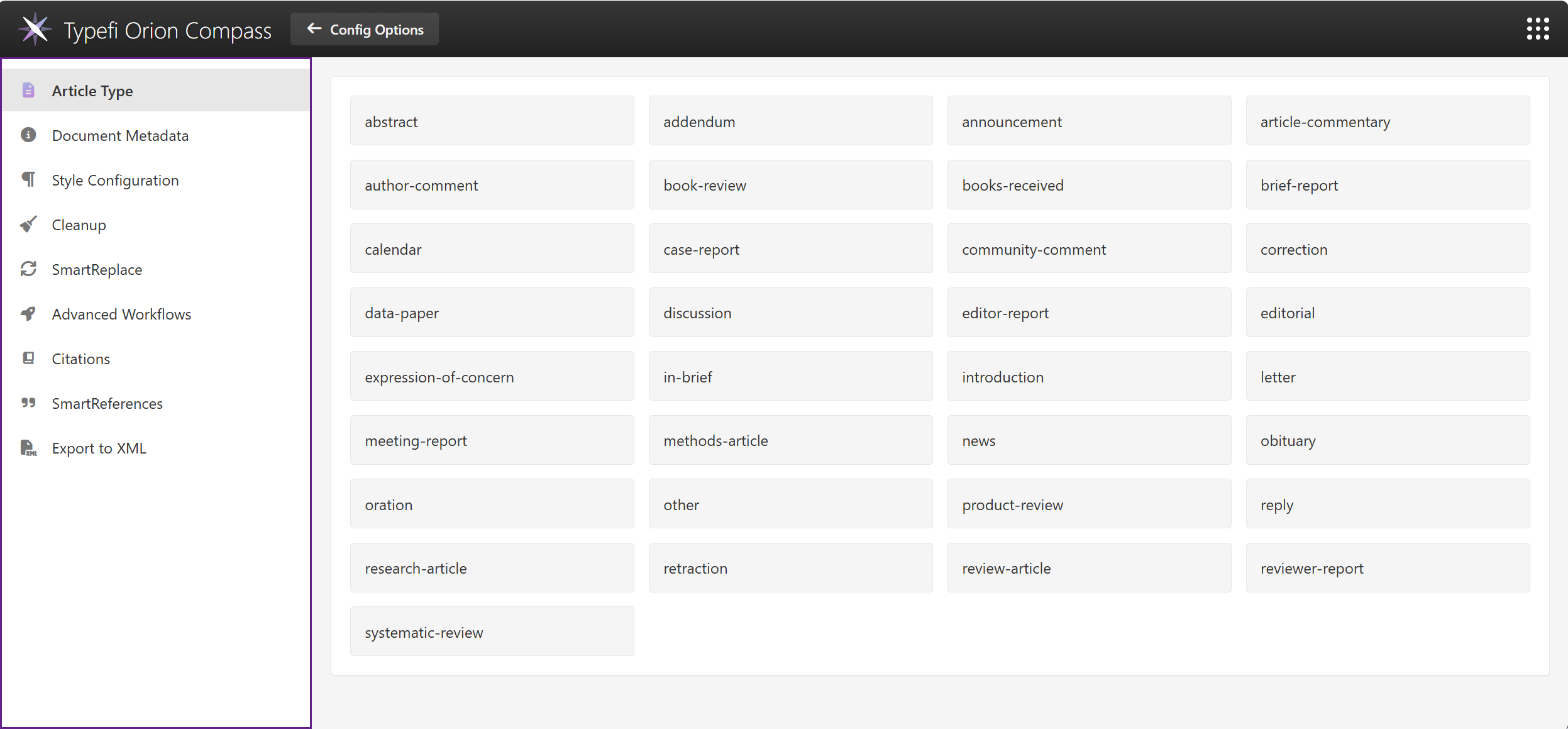
The following global settings apply to all publications.
Global settings
- Article Type
- Document Metadata
- Style Configuration
- Cleanup
- SmartReplace
- Advanced Workflows
- Citations
- SmartReferences
- Export to XML
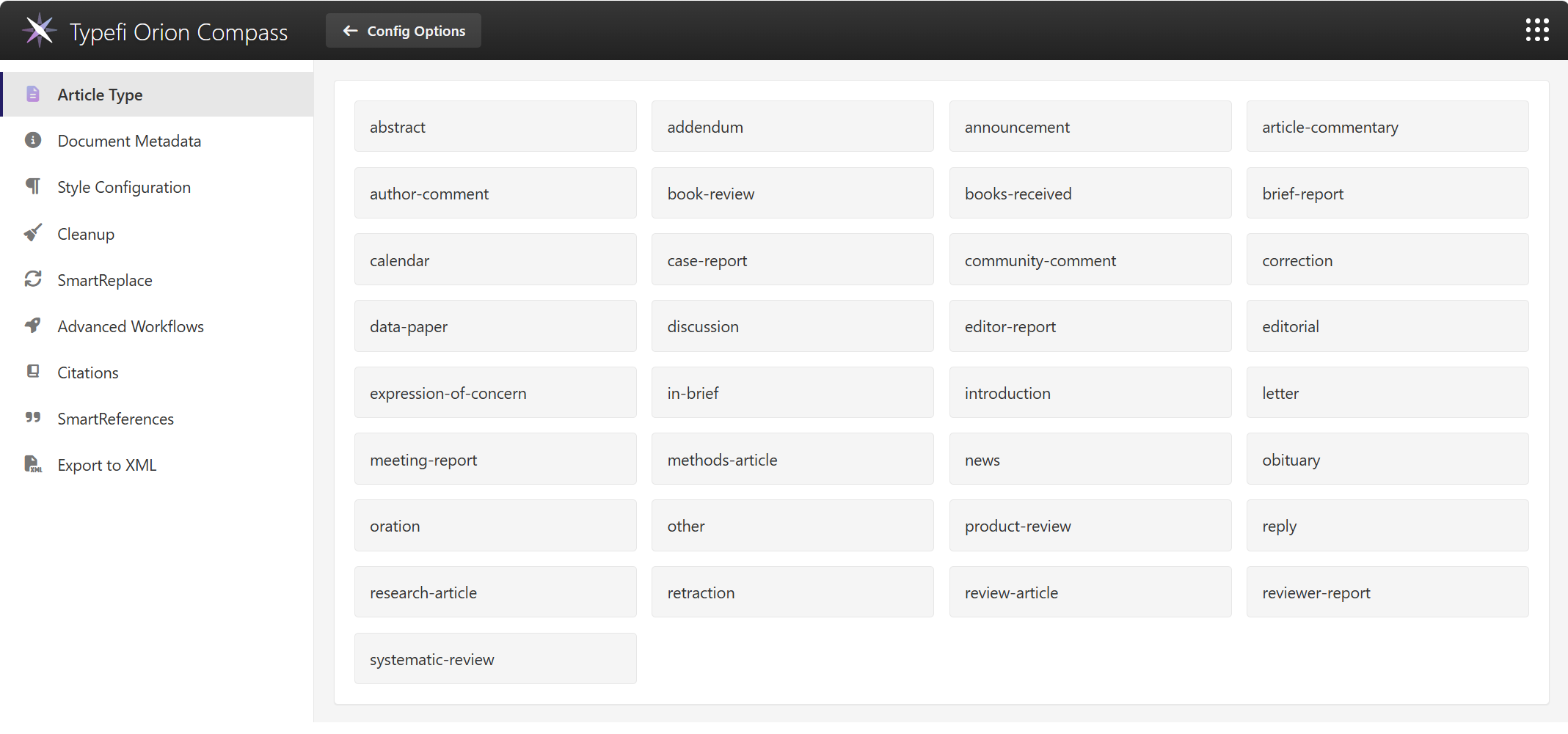
Article Type
View the list of imported article types.
Note
Article types cannot be modified in Orion Compass. To add or modify article types, contact your Solutions Consultant.
Document Metadata
Customise the document metadata labels and values that appear in the Metadata dialog in Typefi Orion for Microsoft Word.
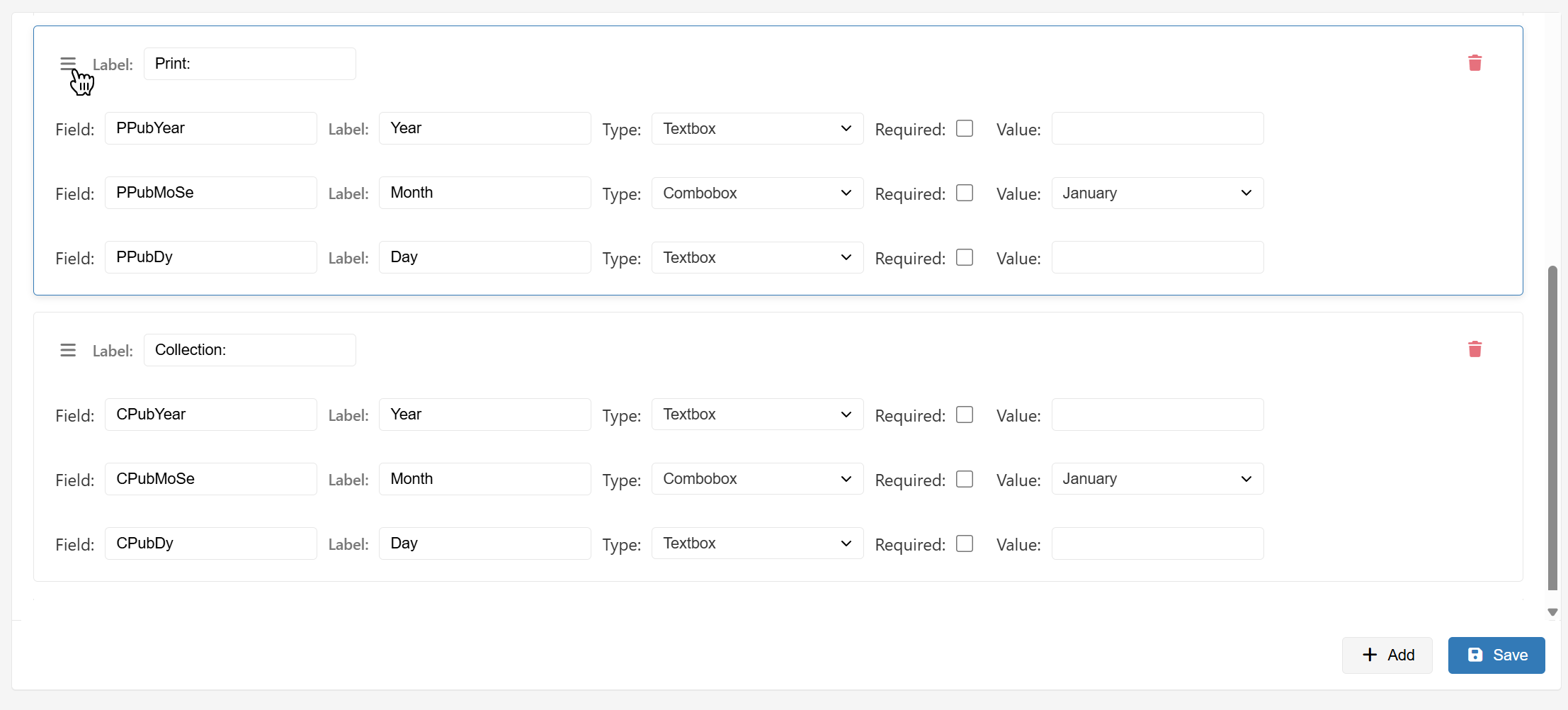
See Document Metadata to learn more.
Style Configuration
Manage how your paragraph styles appear in the Paragraph Styles palette in Orion for Word (Word → Orion ribbon → Document → Styles).
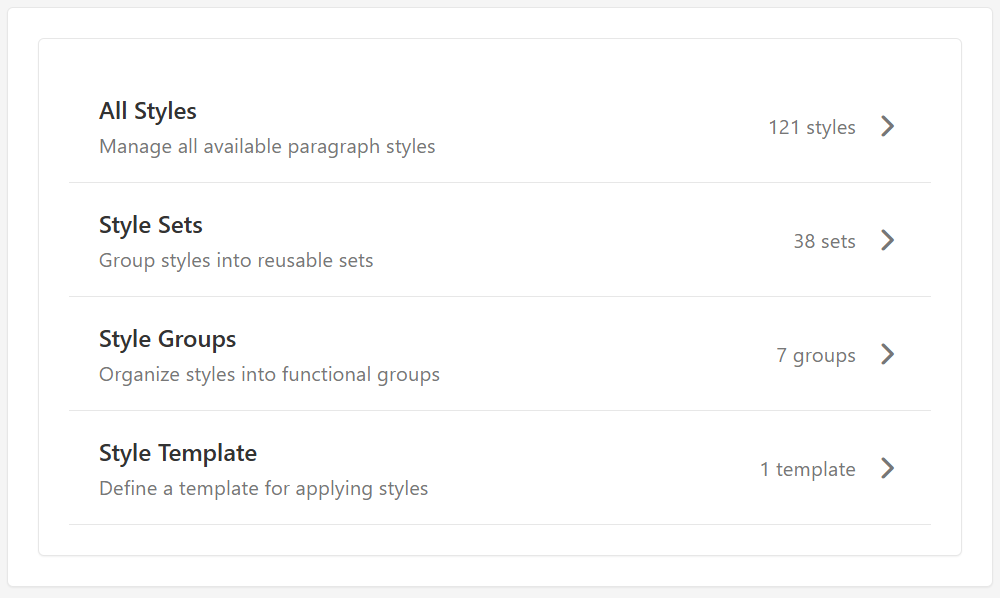
All styles configured in Typefi Orion Compass are applied to your document when you attach your publication in Typefi Orion for Word.
Style Configuration options
- All Styles: Manage all available paragraph styles.
- Style Sets: Group styles to be identified and used by processes such as SmartReferences and Advanced Workflows.
- Style Groups: Organise the paragraph styles into tabs.
- Style Template: Define a template (
.dotx) to apply styles.
Cleanup
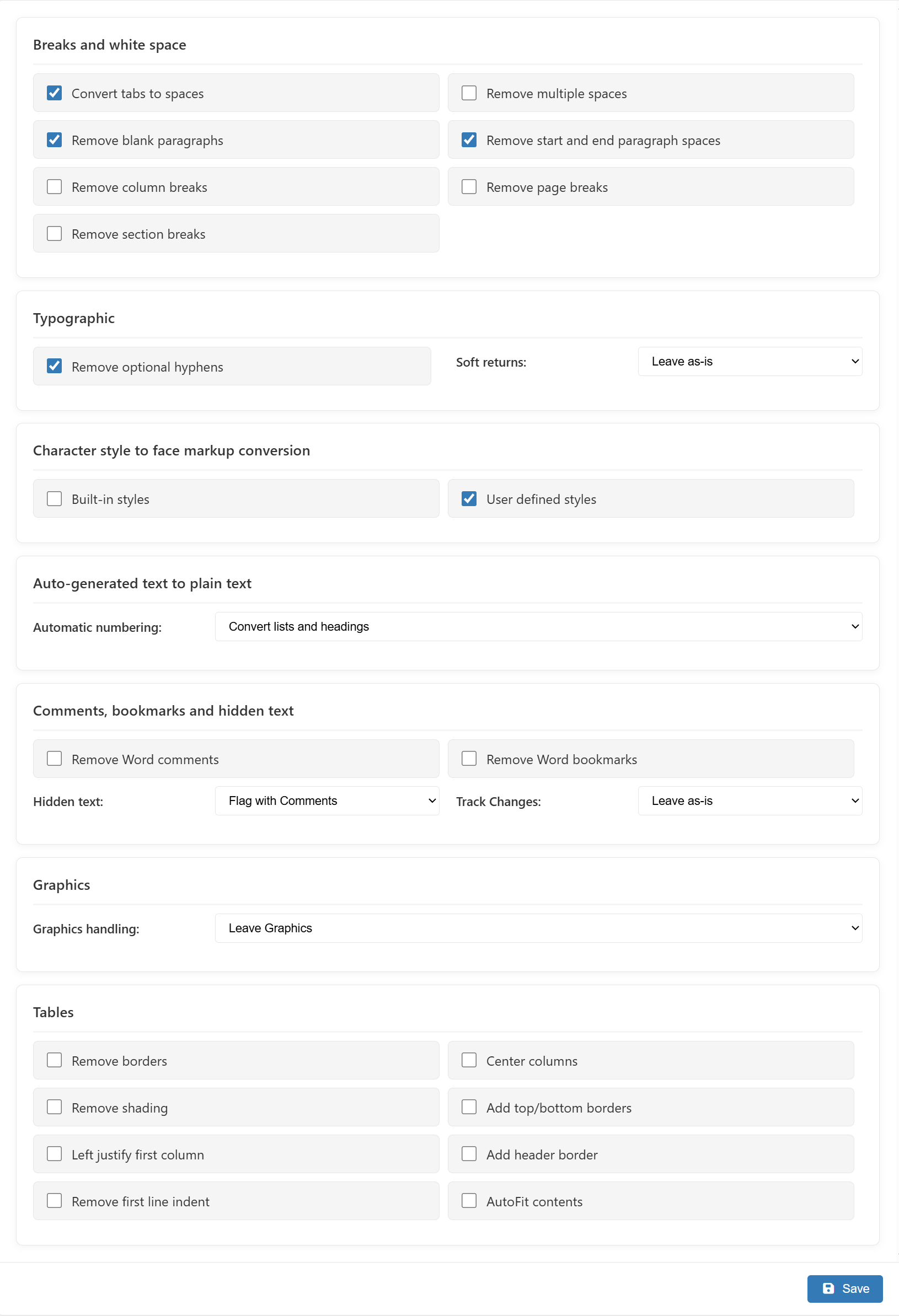
Manage which settings appear by default in the Cleanup dialog of the Typefi Orion for Word ribbon (Word → Orion ribbon → Document → Cleanup).
SmartReplace
Add and manage Typefi workflows to run your SmartReplace rules (known as AutoRedact dictionaries in eXtyles).
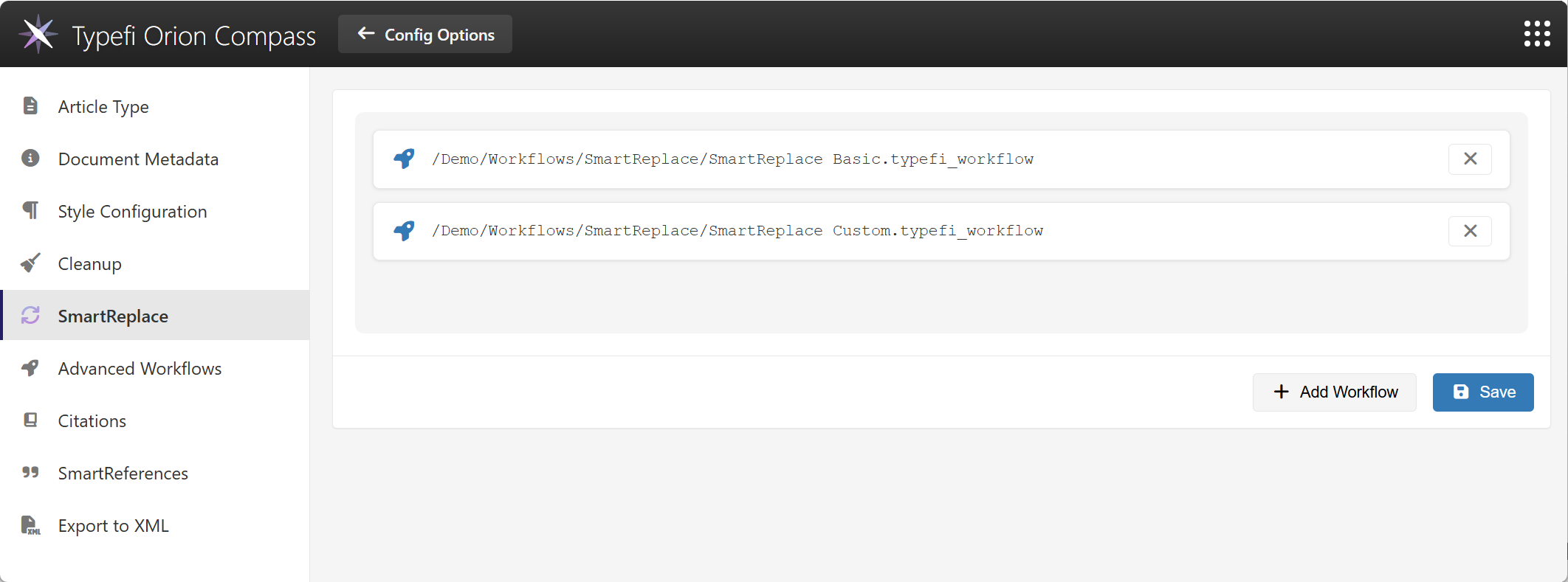
For steps to add and configure your SmartReplace workflows, see Set up SmartReplace in Typefi Orion Compass.
Advanced Workflows
Manage advanced workflows that help you edit, validate, and post-process your documents. Advanced workflows are configured to match your specific editorial behaviour.
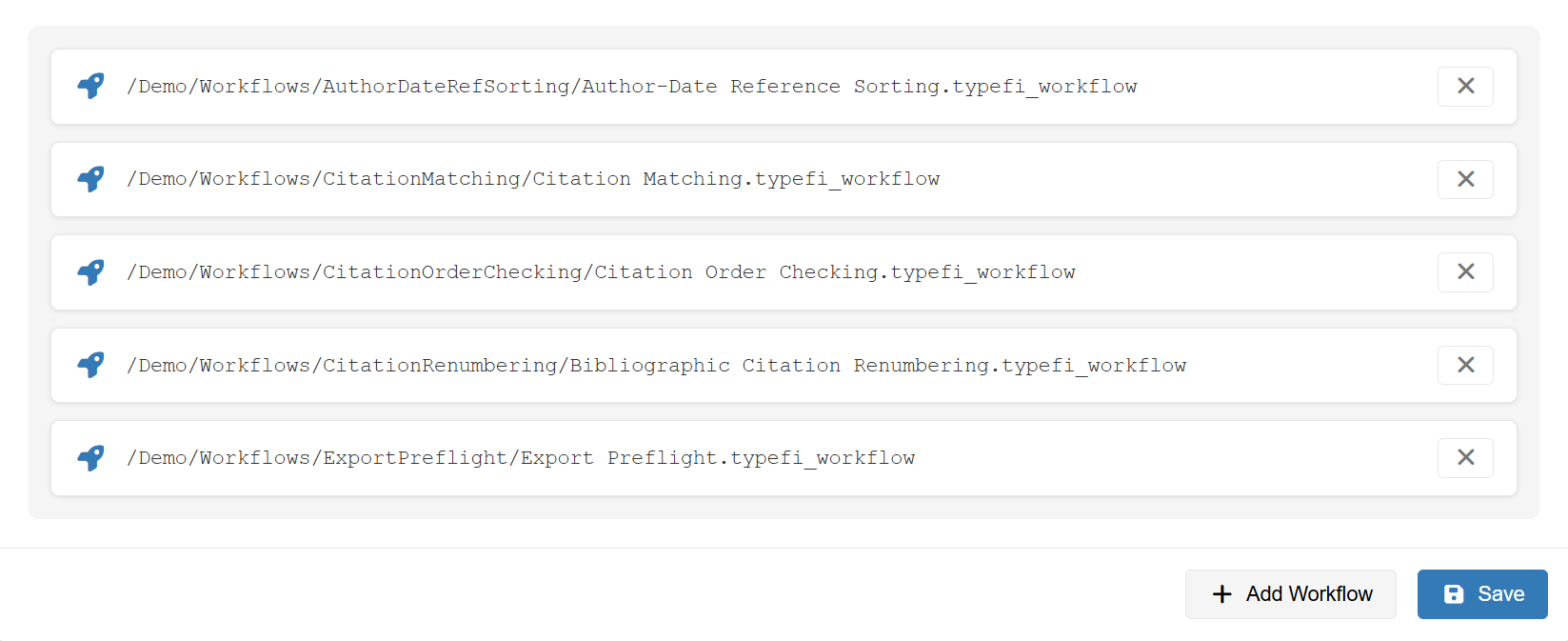
Available workflows
- Author-Date Reference Sorting
- Citation Conversion and Cleanup
- Citation Matching
- Citation Order Checking
- Bibliographic Citation Renumbering
- Export Preflight
Note
Additional advanced workflows are planned for future releases.
For steps to configure advanced workflows, see Set up Advanced Workflows.
Citations
Select and manage your citation format preferences. It automatically applies your selections to both in-text citations and the full bibliography.
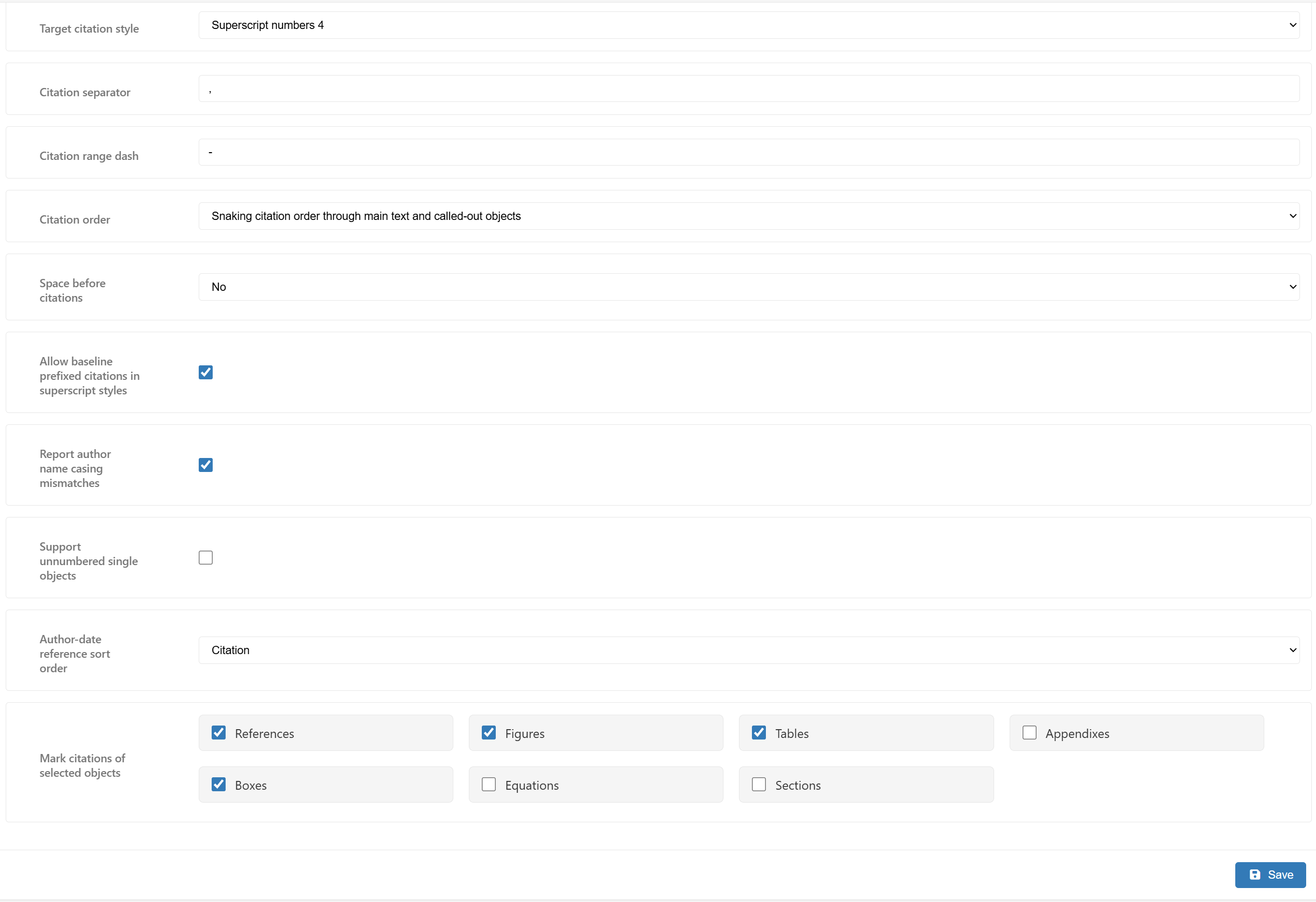
Citation fields and descriptions
| Field | Description |
|---|---|
| Target citation style | Citation format for in-text citations and bibliography references. Select a citation style from the dropdown. |
| Citation separator | Characters used to separate multiple citations (for example, a comma (,) for 1,2,3). |
| Citation range dash | Characters used in citation ranges, for example a hyphen (-) for (1-3) or an en dash (–) for (1–3). |
| Citation order | How citations are numbered when references appear in both main text and called-out objects (tables, figures). Snaking citation order through main text and called-out objects: Numbers sequentially through main text and into called-out objects (for example,Table 1 references are numbered when the table itself is first mentioned), then continues through remaining text. |
| Space before the citations | Control spacing before citation numbers and brackets. Note: Baseline styles typically use a leading space; superscript styles do not. Options:
|
| Allow baseline prefixed citations in superscript styles | When enabled, uses superscript format for inline citations (for example: results observed6-8), but keeps baseline formatting when citations are part of a textual phrase (for example, in See Reference 4). Example format: results are clear5 (See Reference 4). Selected by default. |
| Report author name casing mismatches | Flags casing differences between citations and references in author-date citation styles, for example, "Van Gogh" vs "van Gogh". Selected by default. |
| Support unnumbered single objects | Allows citation references without numbers (for example, "See Figure"). Deselected by default. |
| Author-date references | Choose whether to sort references by authorship or citation order. |
| Make citations of selected objects | Choose which object types to include when generating citations. Options:
|
SmartReferences
Select your preferred reference style. Orion uses your selected style to process your references using Edifix, which automatically corrects, links, and formats them against Crossref and PubMed to ensure accuracy and adherence to your chosen style.
On-premises setup requirements
Before selecting a reference style, ensure your IT or local administrator has completed the following in Typefi Server:
- Installed a valid Typefi license (contains the installation ID required for SmartReferences).
- Configured a telemetry token (see Send telemetry data for instructions).
WARNING
If the telemetry token is missing, you'll see an error when using SmartReferences in Typefi Orion for Word. If you don't have a telemetry token, contact your Solutions Consultant.
For setup requirements and steps, see Set up SmartReferences
Export to XML
Manage how your document is exported in Typefi Orion for Microsoft Word (Word → Orion ribbon → Output → Export to XML).
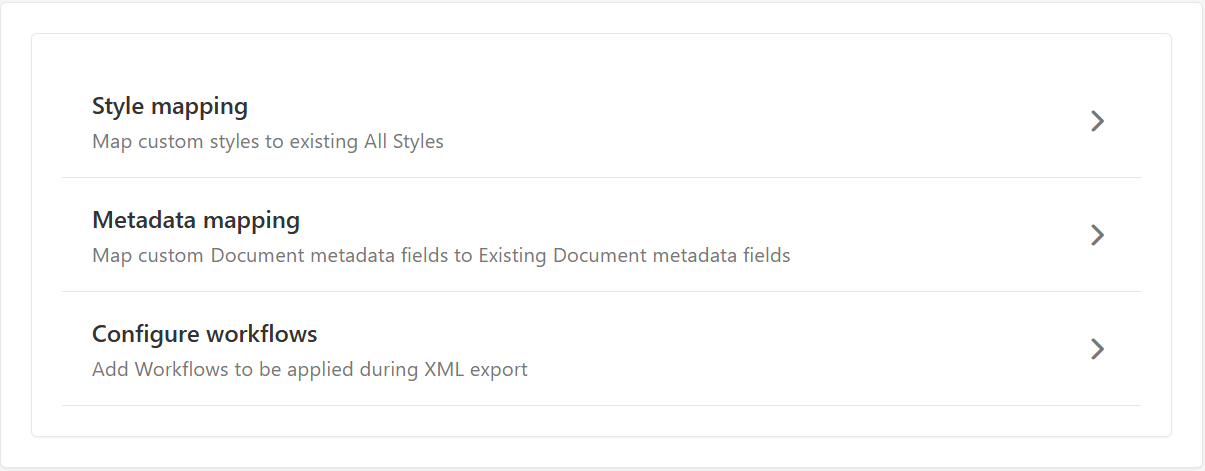
Export to XML configuration options:
- Style mapping: Map custom styles to existing All Styles (Global settings → Style Configuration → All Styles).
- Metadata mapping: Map custom Document metadata fields to Existing Document metadata fields (Global settings → Document Metadata).
- Configure workflows: Add workflows to be applied during XML export in Typefi Orion for Microsoft Word (Word → Orion ribbon → Output → Export to XML).
For setup steps, see Export to XML (coming soon).
Publication settings
In Publication Settings, you can configure settings specific to your organisation's individual publications.
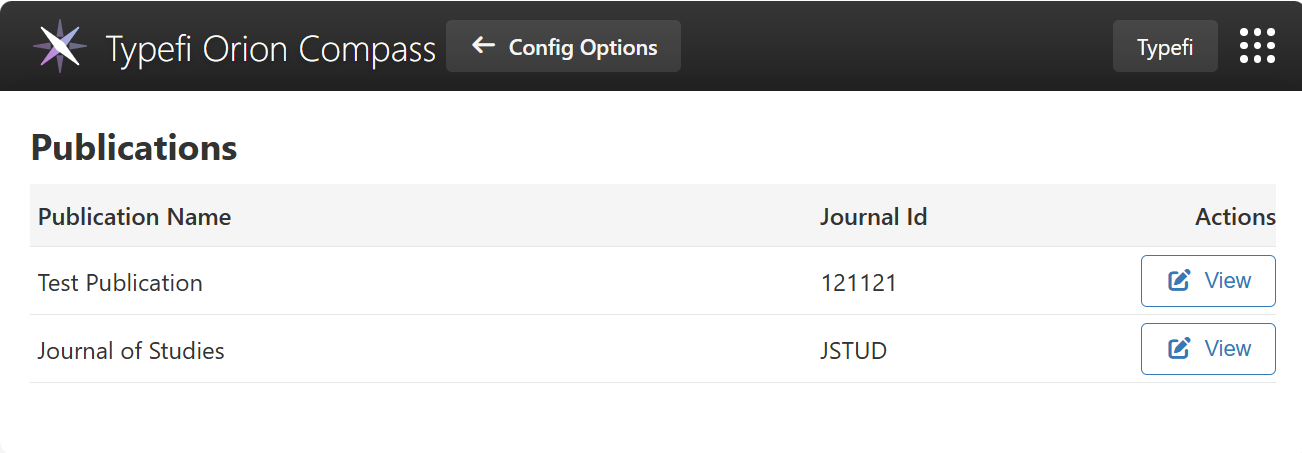
You can choose whether to import one or more publications automatically, or manually add each publication. For steps to import or add publications, see Import your configuration in Typefi Orion Compass.
To customise settings for individual publications, select Edit (next to the publication's name).
Note
If you are not signed in as an administrator, select View instead.
Publication Metadata
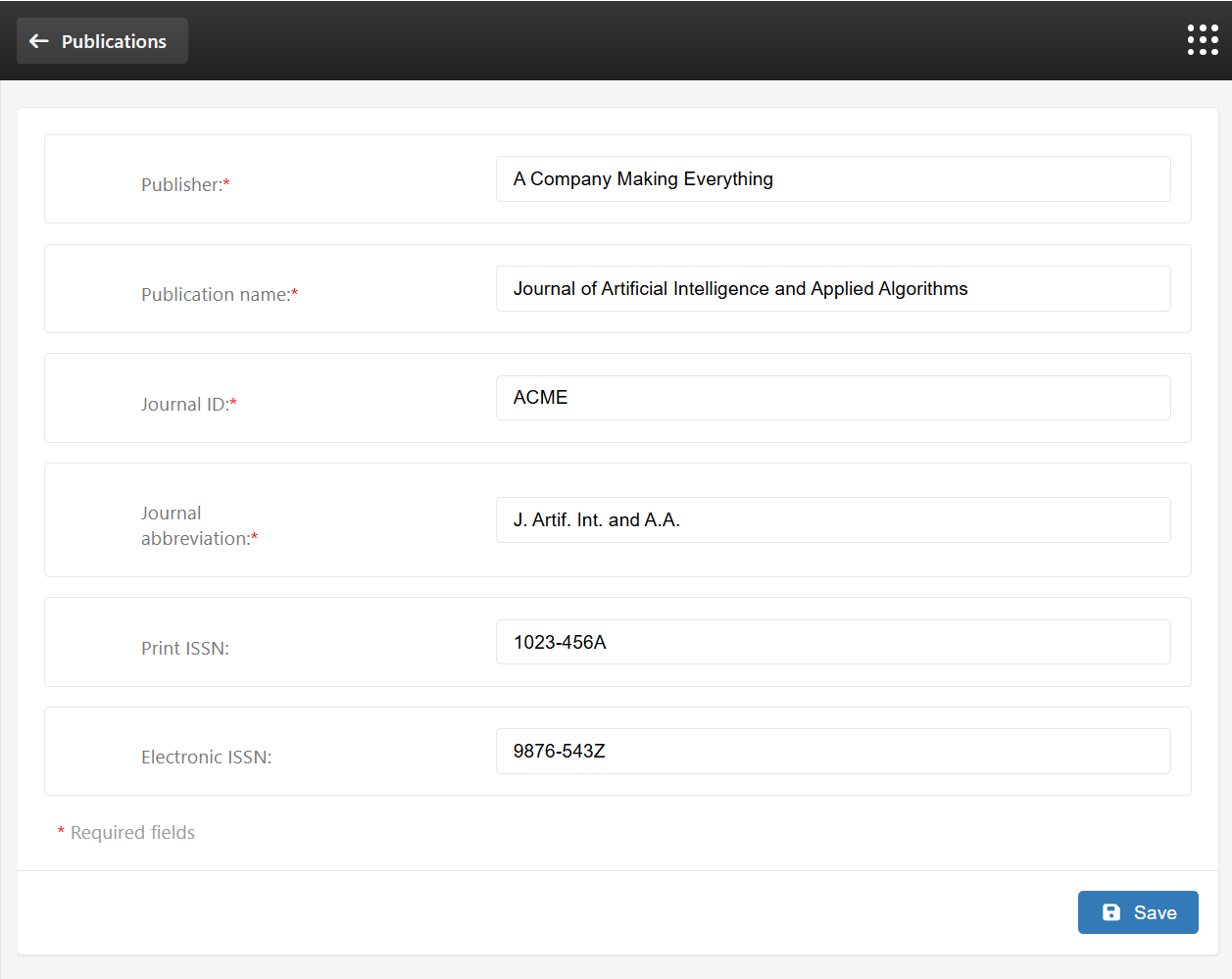
You can add and edit the following metadata for each publication:
- Publisher
- Publication name
- Journal ID
- Journal abbreviation
- Print ISSN
- Electronic ISSN
- Publisher
Note
Publisher, Publication name, Journal ID, and Journal abbreviation are required.
Override global settings
You can customise one or more global settings for a specific publication—for example, to apply a different reference style to a single journal without it affecting other publications.
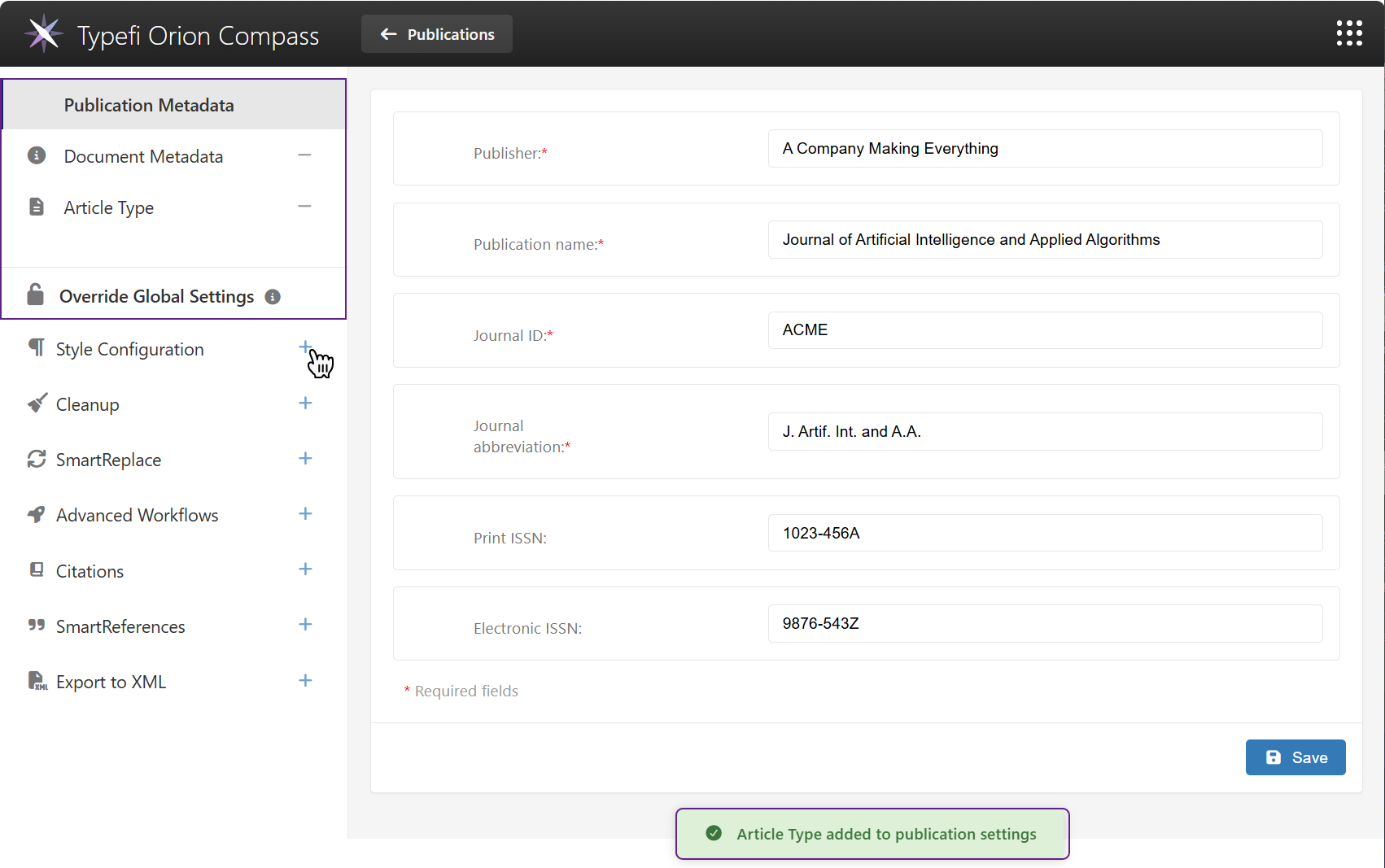
With the Override Global Settings unlocked, you can select the global settings you want to override for that publication.
When an override is active, it takes priority over the corresponding global settings for that publication only. Removing an override restores the global default.
Coming soon
A tutorial for how to override settings will be available soon.